A real walkthrough — landlord creates an account, invites a tenant, the tenant documents the unit, and both parties get a timestamped inspection report. Every screenshot is from a live inspection on the actual app.
Landlords manage everything from the web portal at amavera.app. No app download required. Create an account, buy report credits, and invite your tenant in under two minutes.
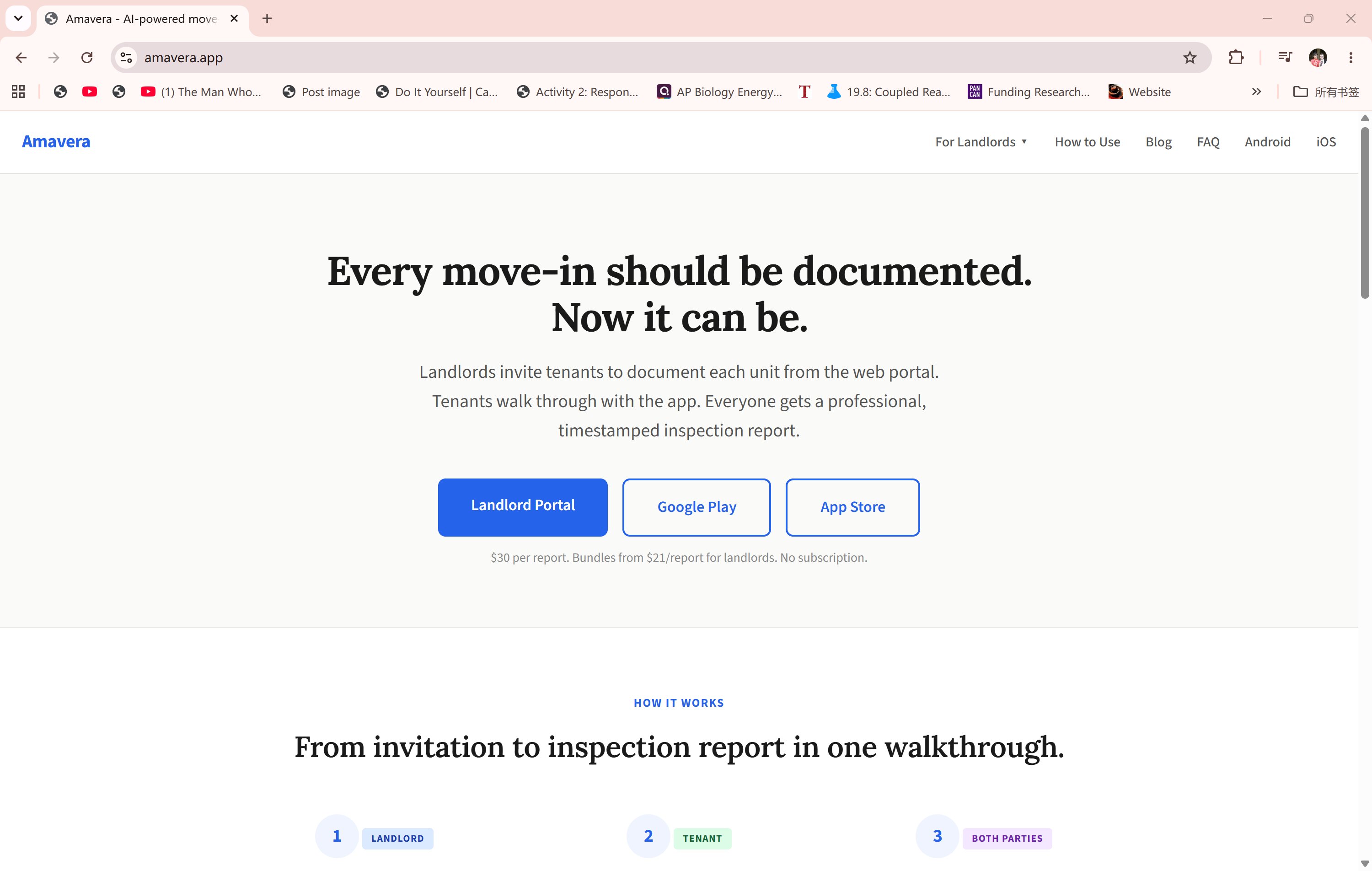
Step 1 of 8
Amavera's homepage makes it clear from the start: landlords manage from the portal, tenants use the app. Every inspection ends with a professional, timestamped report for both parties.
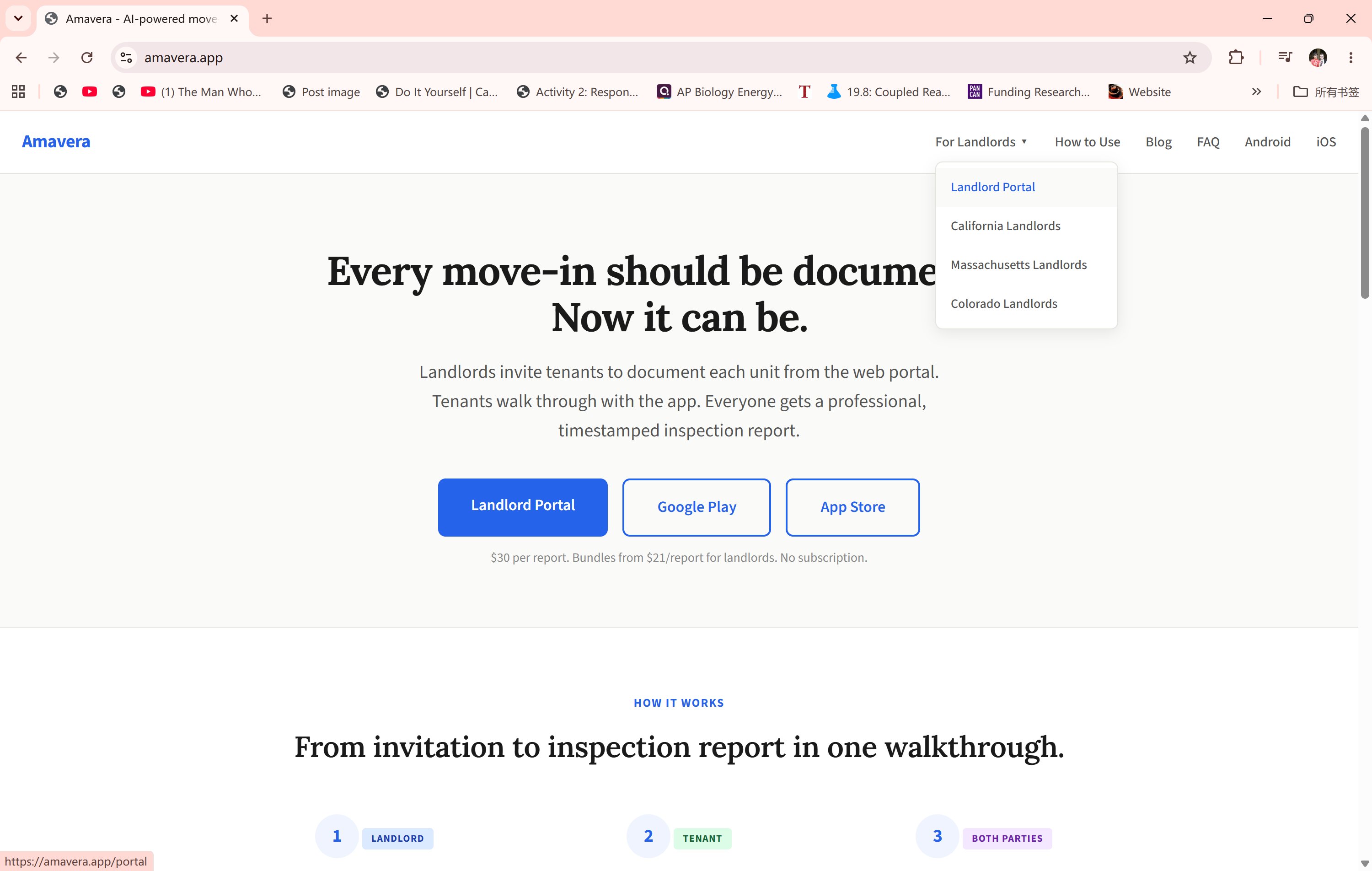
Step 2 of 8
The "For Landlords" menu links directly to the portal and to state-specific guides for California, Massachusetts, and Colorado — where deposit documentation laws are most stringent.
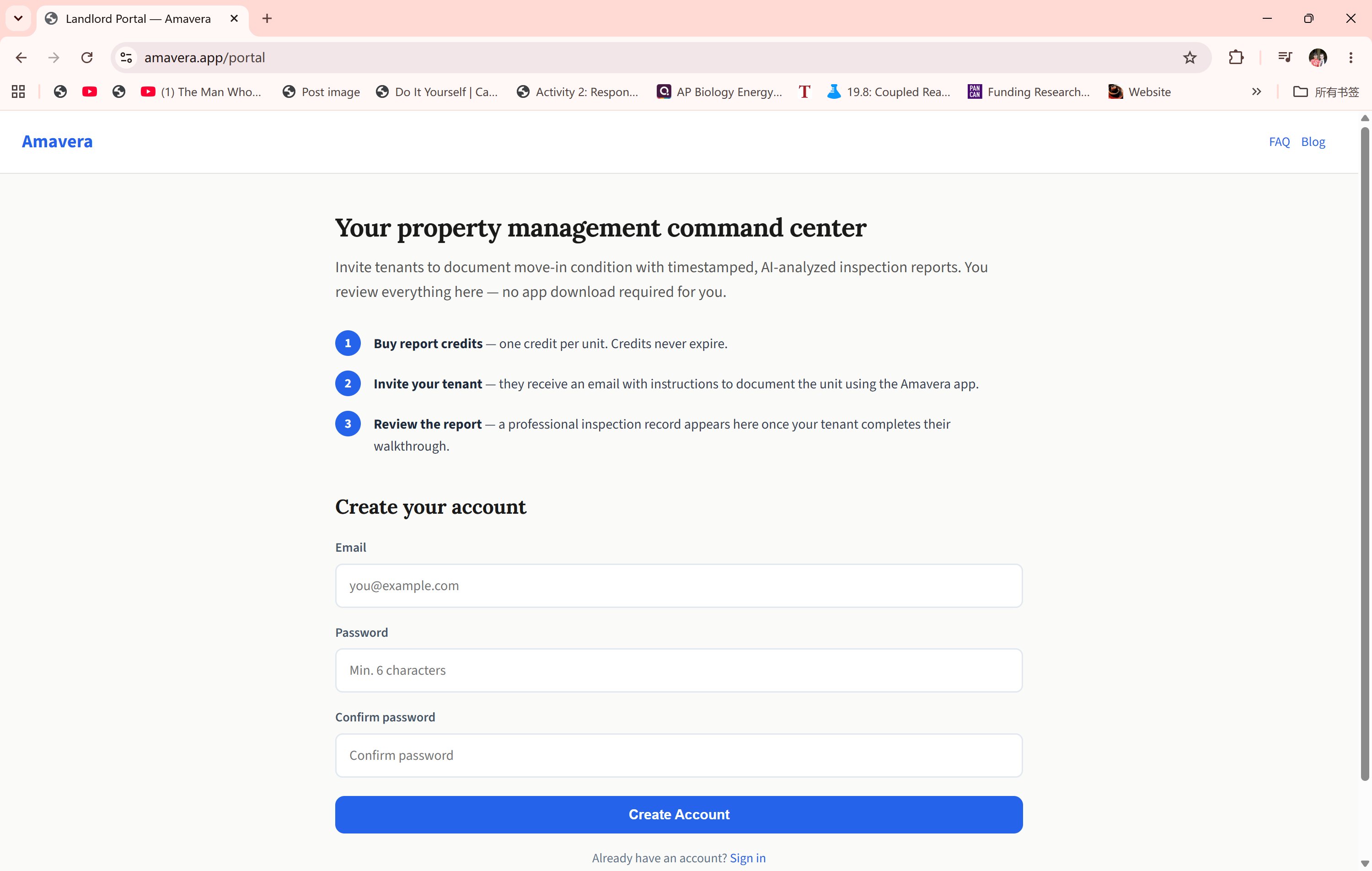
Step 3 of 8
The landlord portal opens with a simple three-step explainer and an account creation form. The entire setup — account, credits, first invitation — takes under five minutes.
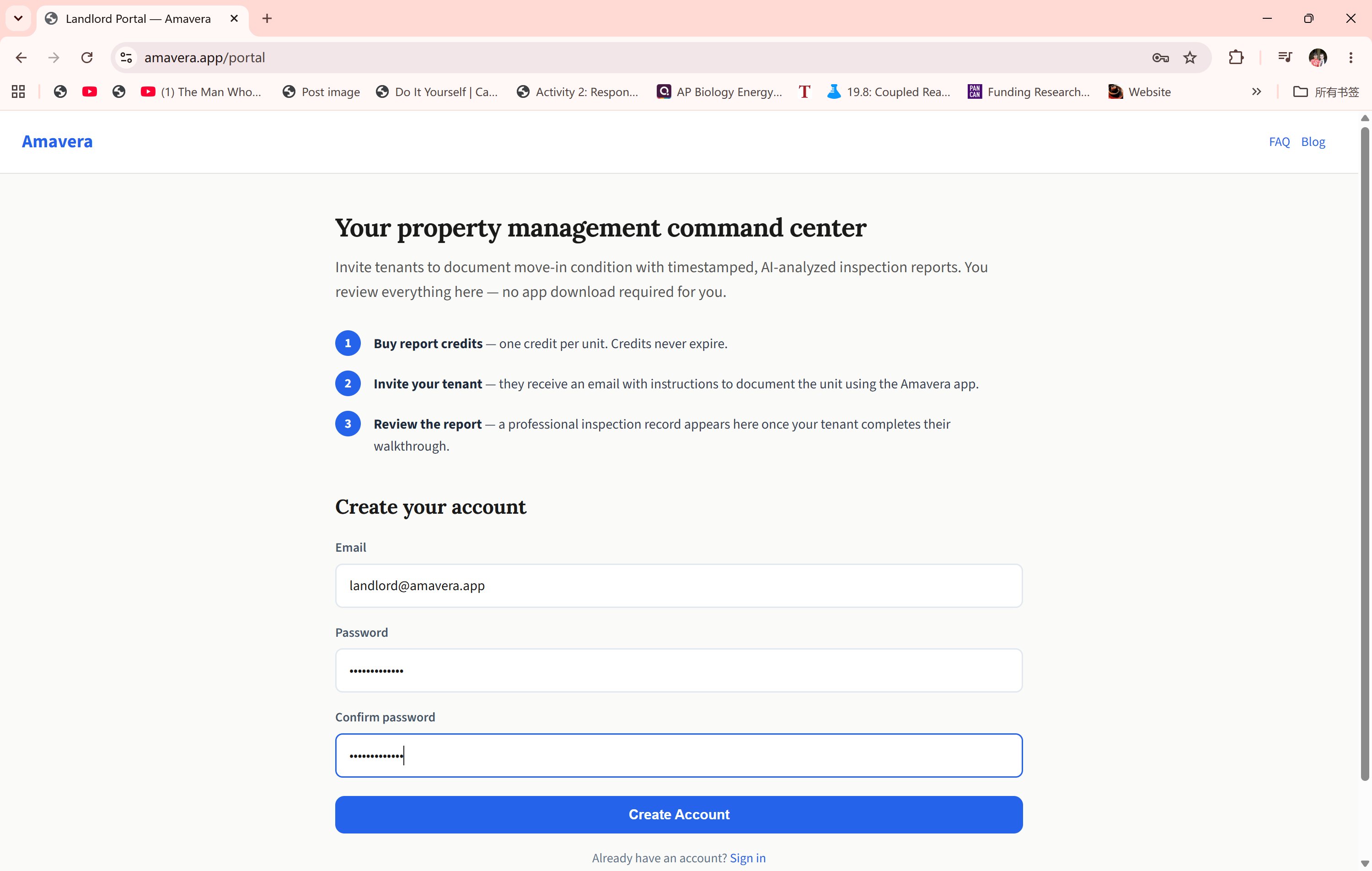
Step 4 of 8
Creating an account with the landlord email. The same email and password are used to sign in to the Amavera app — credits carry over automatically between the portal and app.
Step 5 of 8
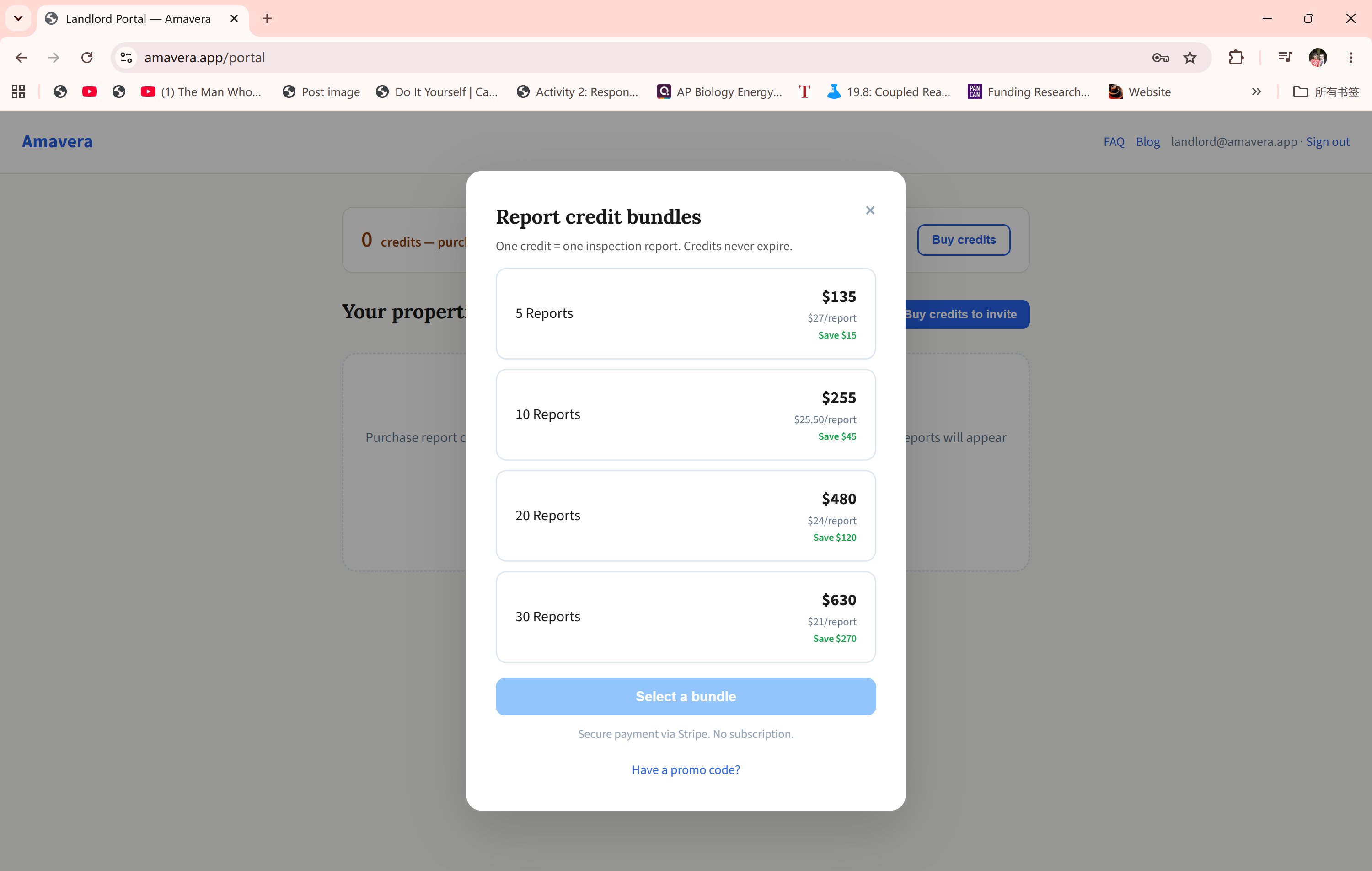
Report credits are purchased in bundles. One credit covers one full inspection report. Credits never expire, so you can buy ahead for multiple properties. Bundles start at $27/report and go down to $21/report for 30.
Step 6 of 8
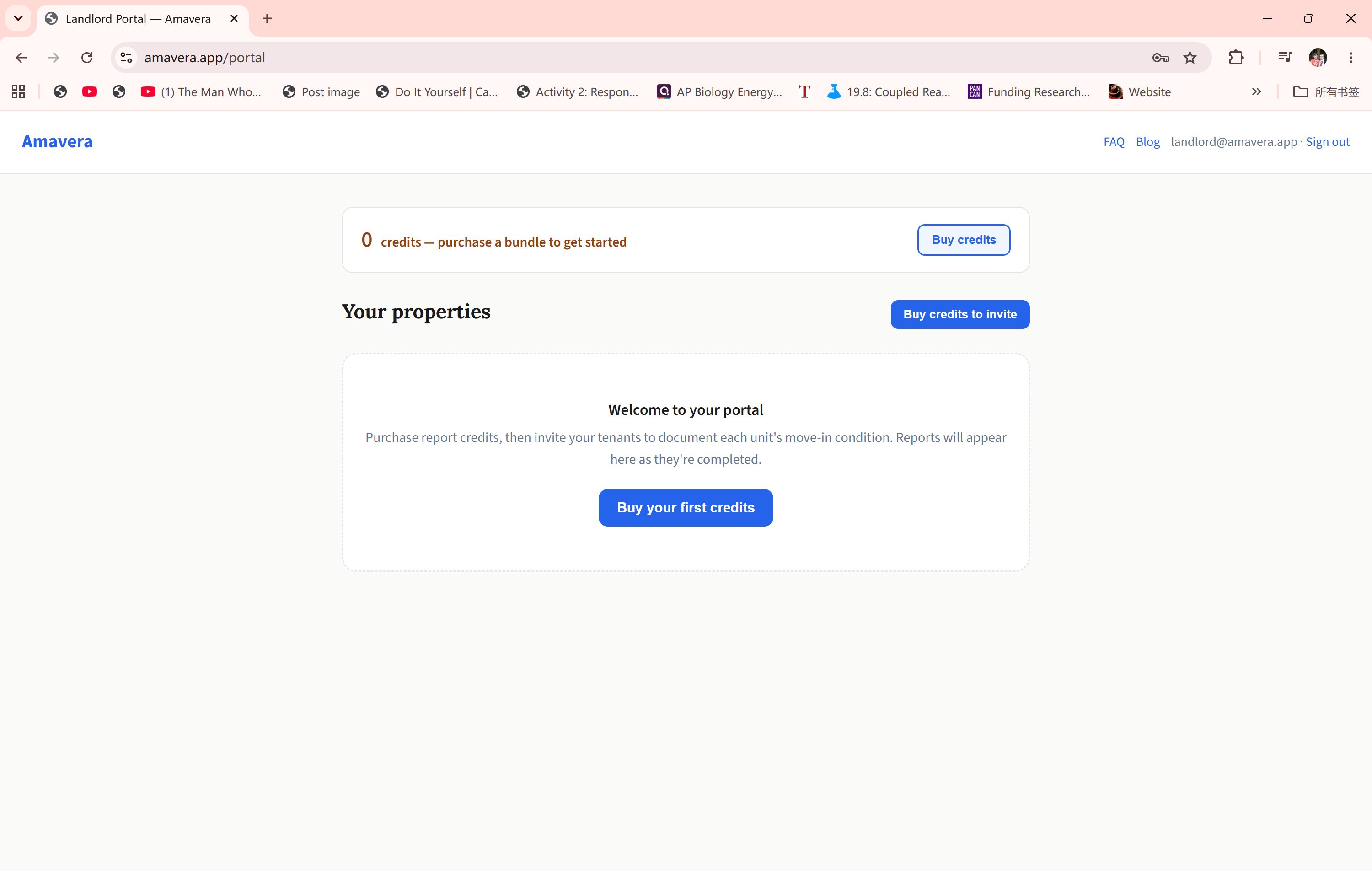
After creating an account, the portal is ready. Purchase report credits to get started — credits never expire and can be used across any property.
Step 7 of 8
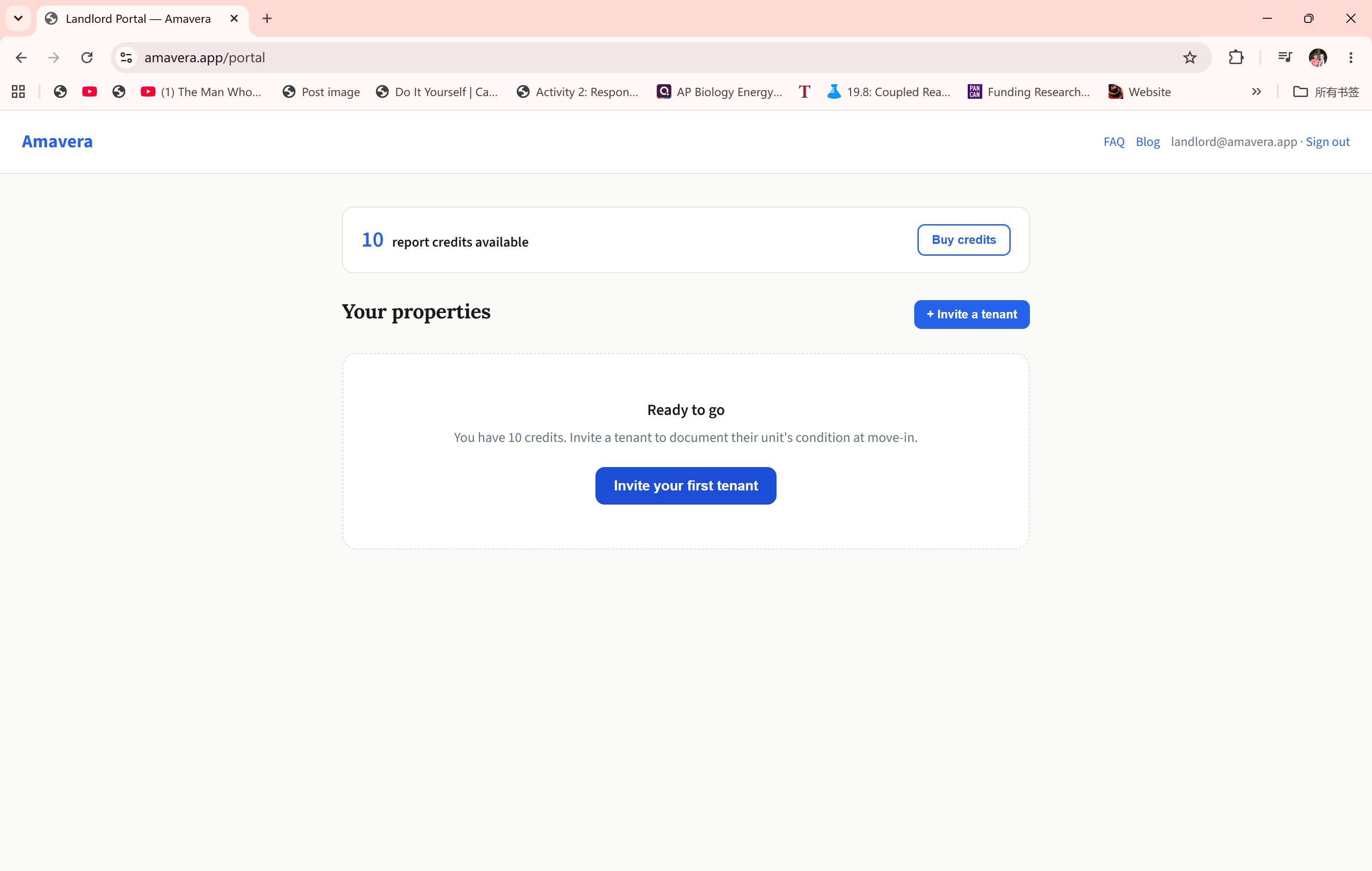
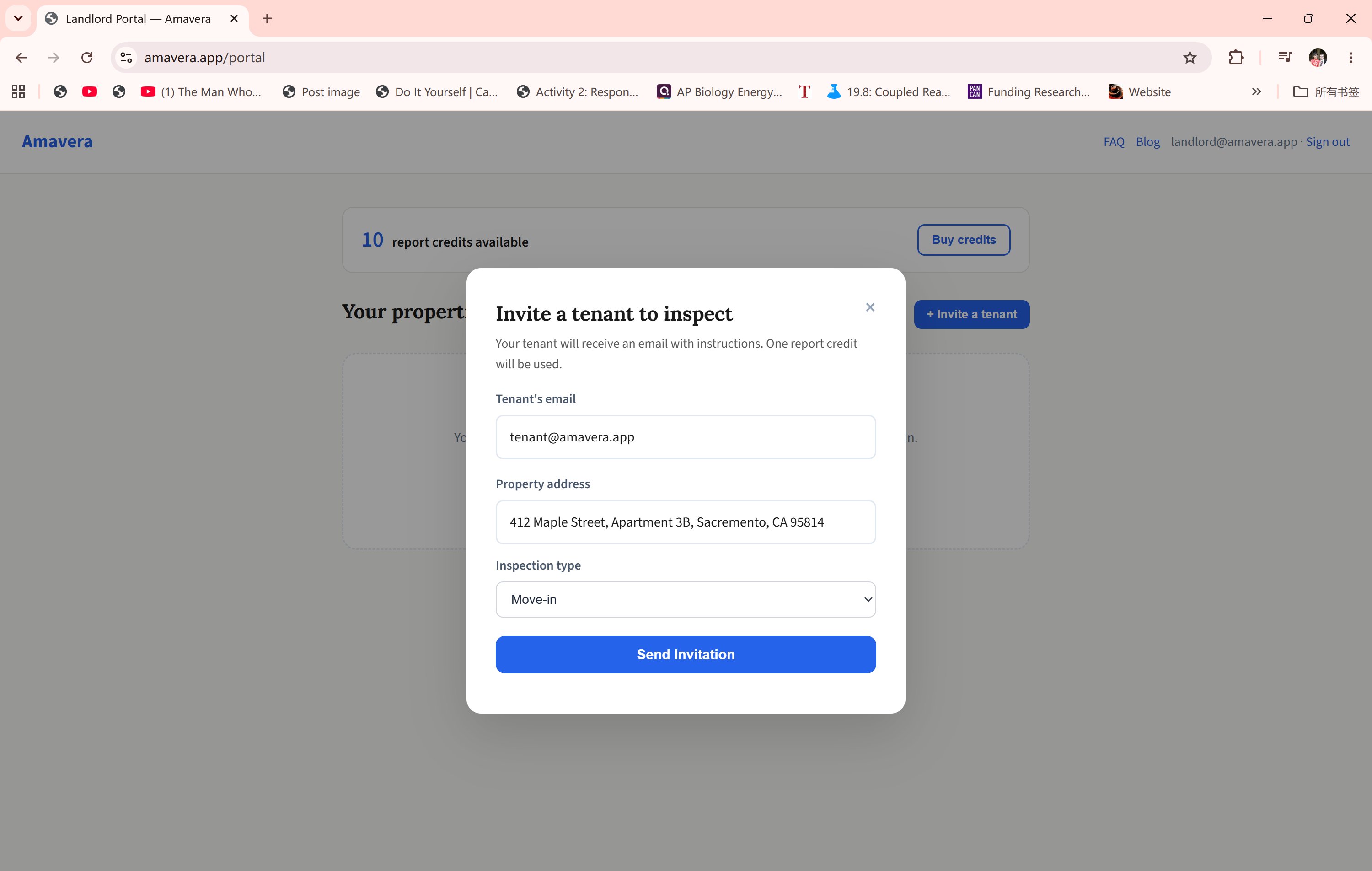
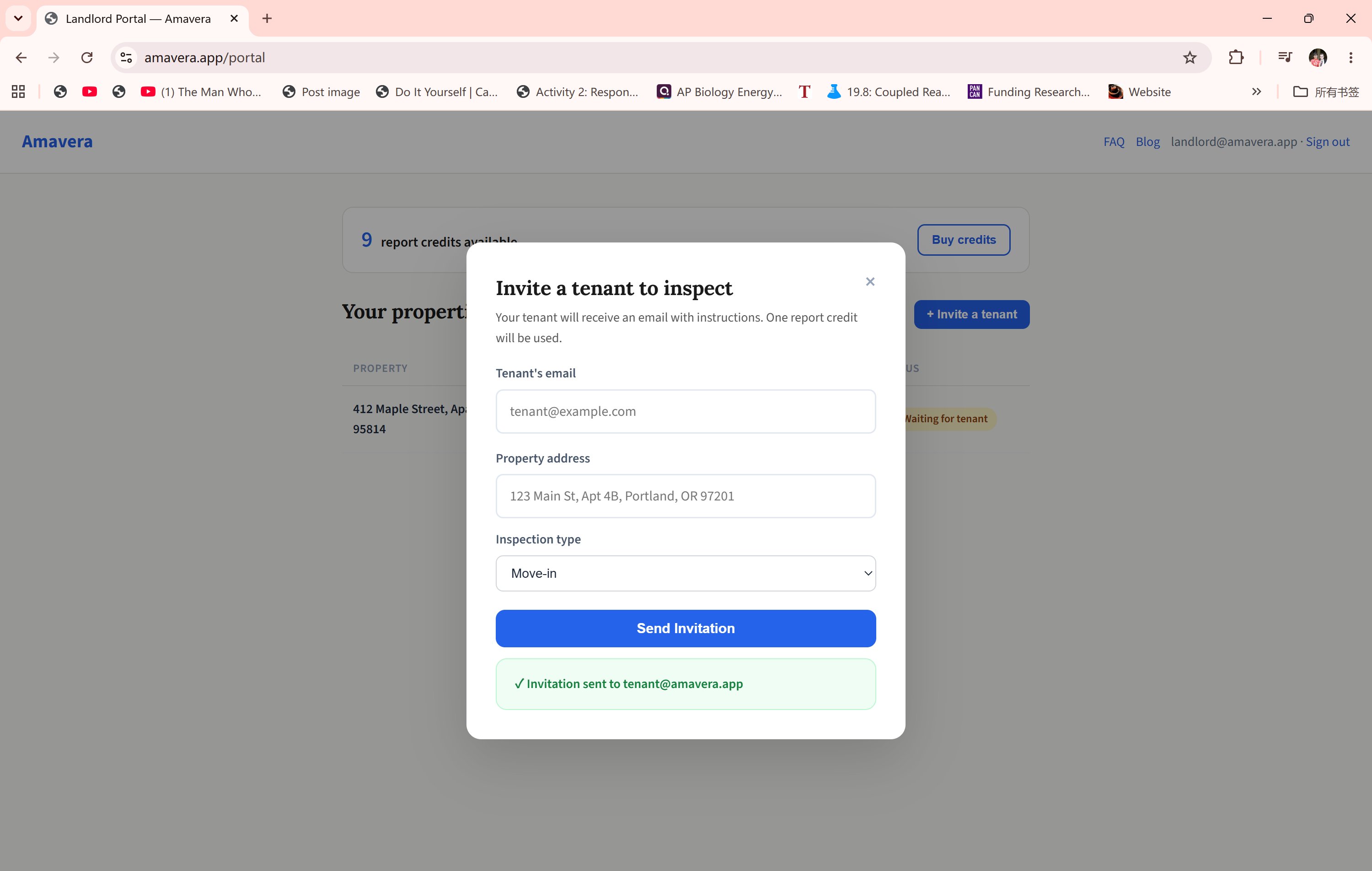
Clicking "Set up an inspection" opens a two-path modal — invite a tenant (they get a free report credit and an email with app download links) or inspect the property personally yourself. Fill in the tenant's email, address, inspection type, and lease dates, then send.
Step 8 of 8
Fill in the tenant's email, street address, city/state/ZIP, inspection type, and lease dates. One credit is reserved and the tenant receives their invitation email immediately.
1 / 8
Email Notifications
Both parties are notified automatically.
As soon as the invitation is sent, Amavera fires off confirmation emails to the landlord and invitation emails to the tenant — no manual follow-up needed.
1 of 4
Invitation sent. A green confirmation appears in the modal showing the tenant's email address. The landlord dashboard updates automatically.
2 of 4
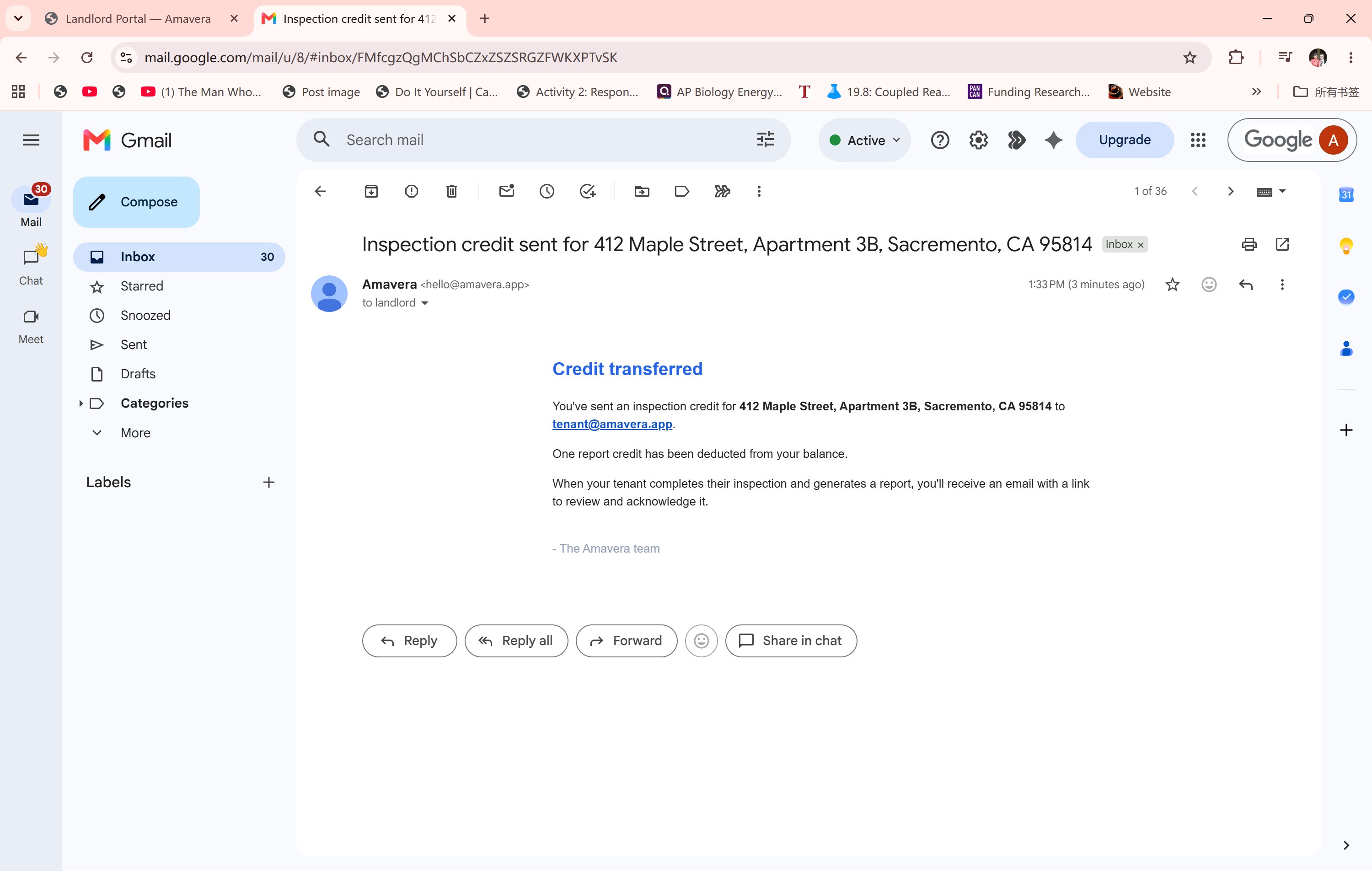
The landlord receives a confirmation email noting that one credit has been transferred to the tenant for 412 Maple Street. When the inspection is complete, another email arrives with a link to review and acknowledge the report.
3 of 4
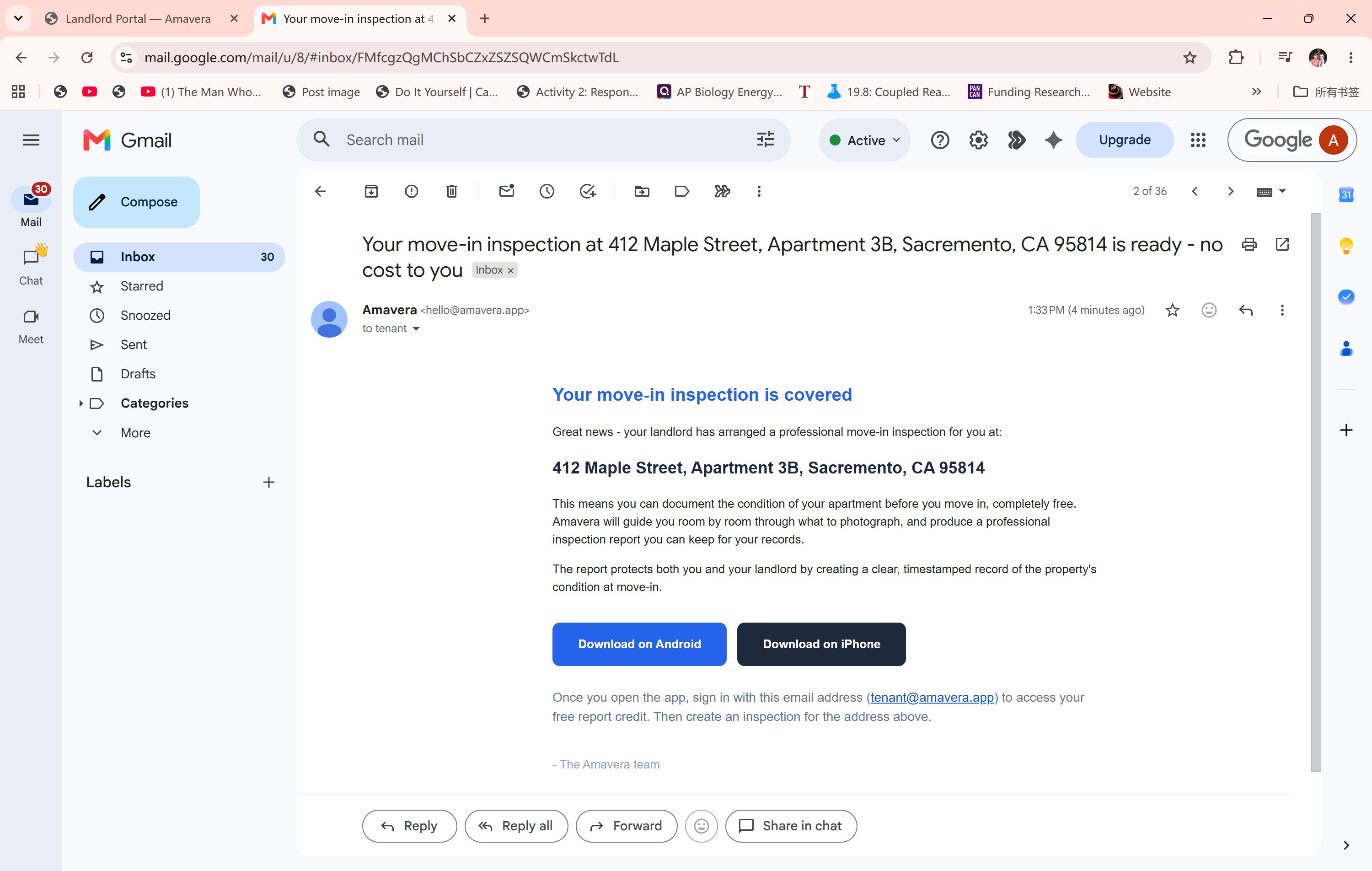
The tenant receives a clear, friendly email explaining that their landlord has arranged a professional move-in inspection at no cost to them. Direct download links for iPhone and Android are included — and the email specifies exactly which email address to sign in with to claim the credit.
4 of 4
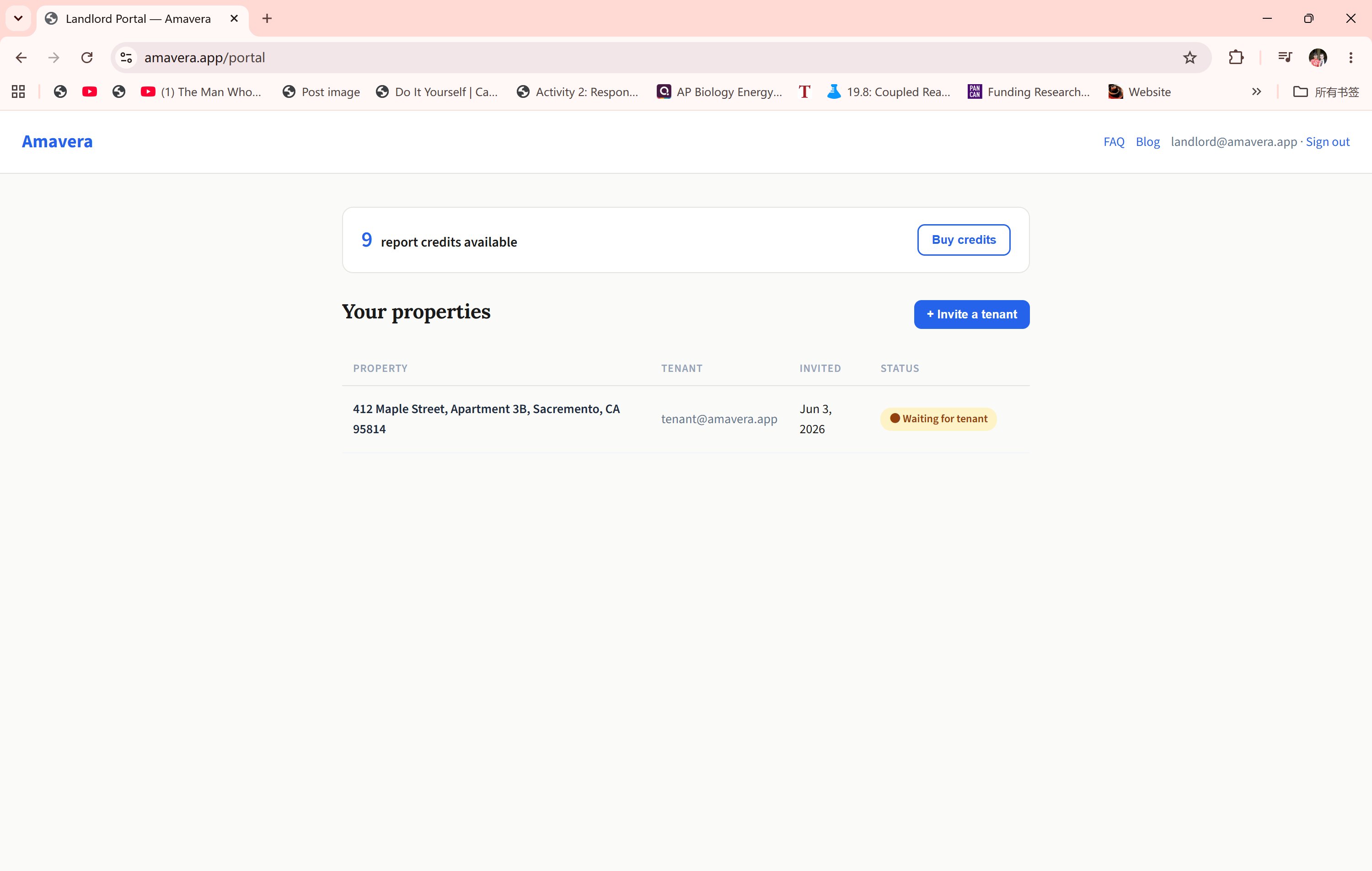
While the tenant completes the inspection, the landlord dashboard shows the property status in real time. No action needed — the report will appear automatically once the tenant is done.
1 / 4
Tenant — Mobile App
The tenant walks through the unit and documents everything.
The tenant downloads Amavera, signs in with the email they were invited on, and the credit is applied automatically. The app guides them room by room — no instruction needed.
1 of 11
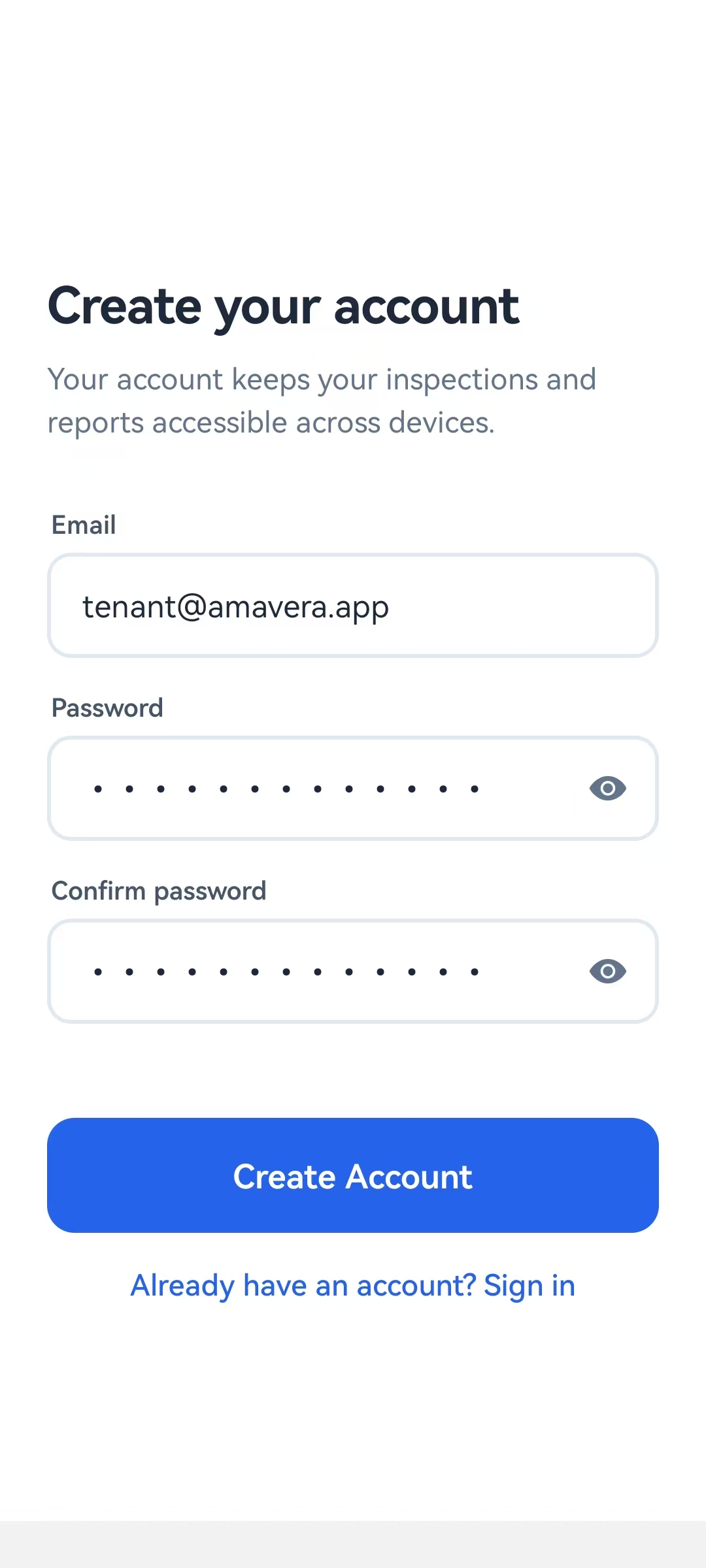
The tenant creates an account using the same email address the landlord used to invite them. The report credit is claimed automatically on sign-in — no payment required.
2 of 11
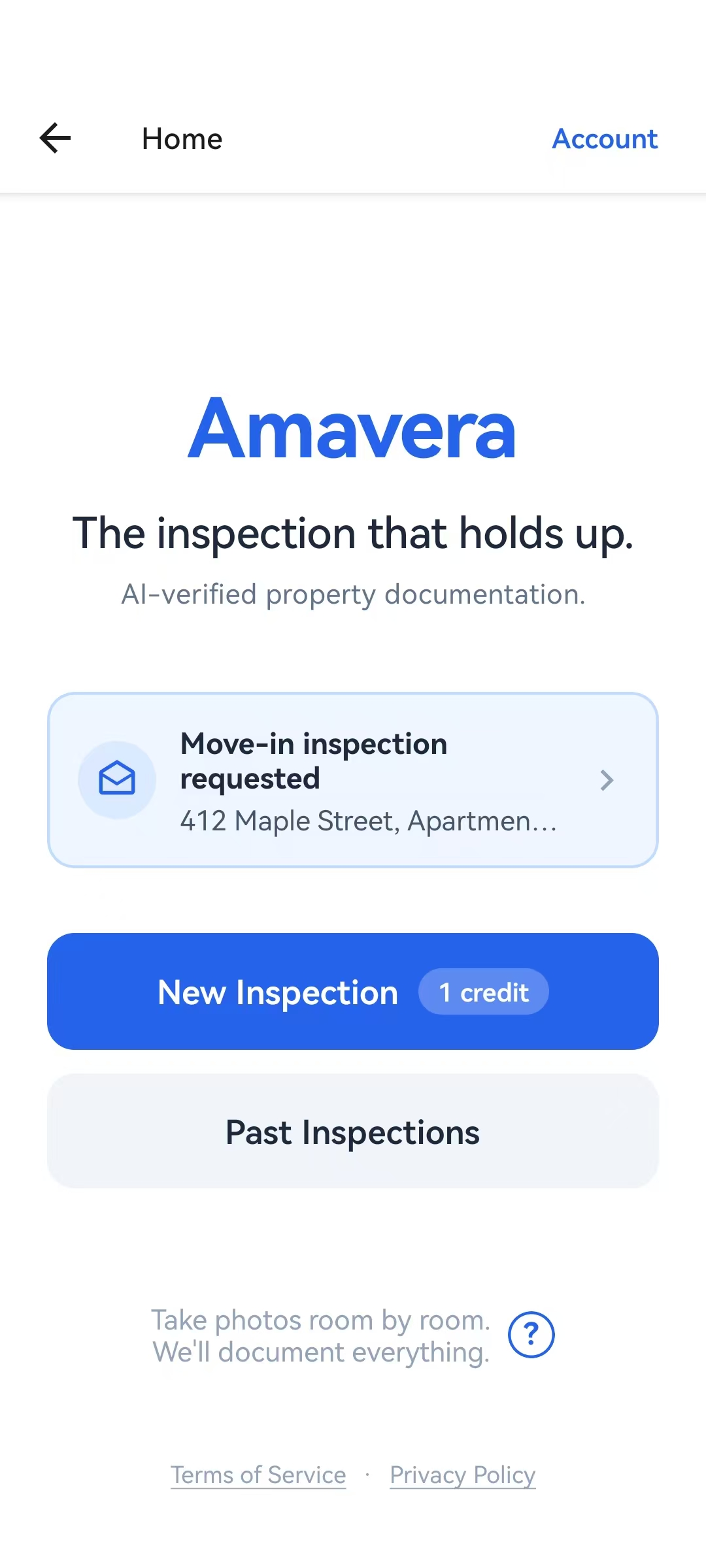
After signing in, the home screen shows the pending invitation as a card — the property address, inspection type, and a prompt to start. One credit is loaded and ready. The tenant taps to begin.
3 of 11
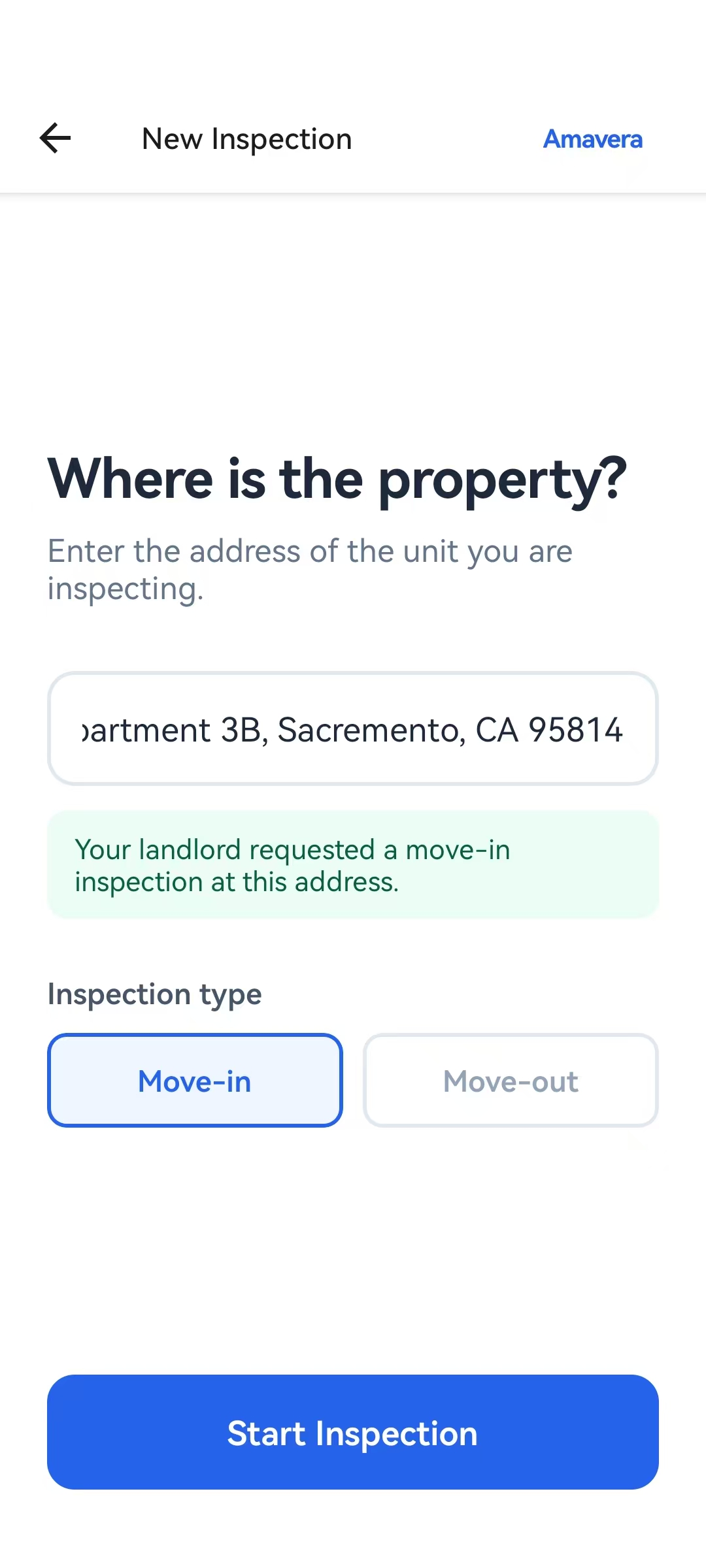
The property address is pre-filled from the landlord's invitation, and a green note confirms the landlord requested this move-in inspection. The tenant just taps "Start Inspection."
4 of 11
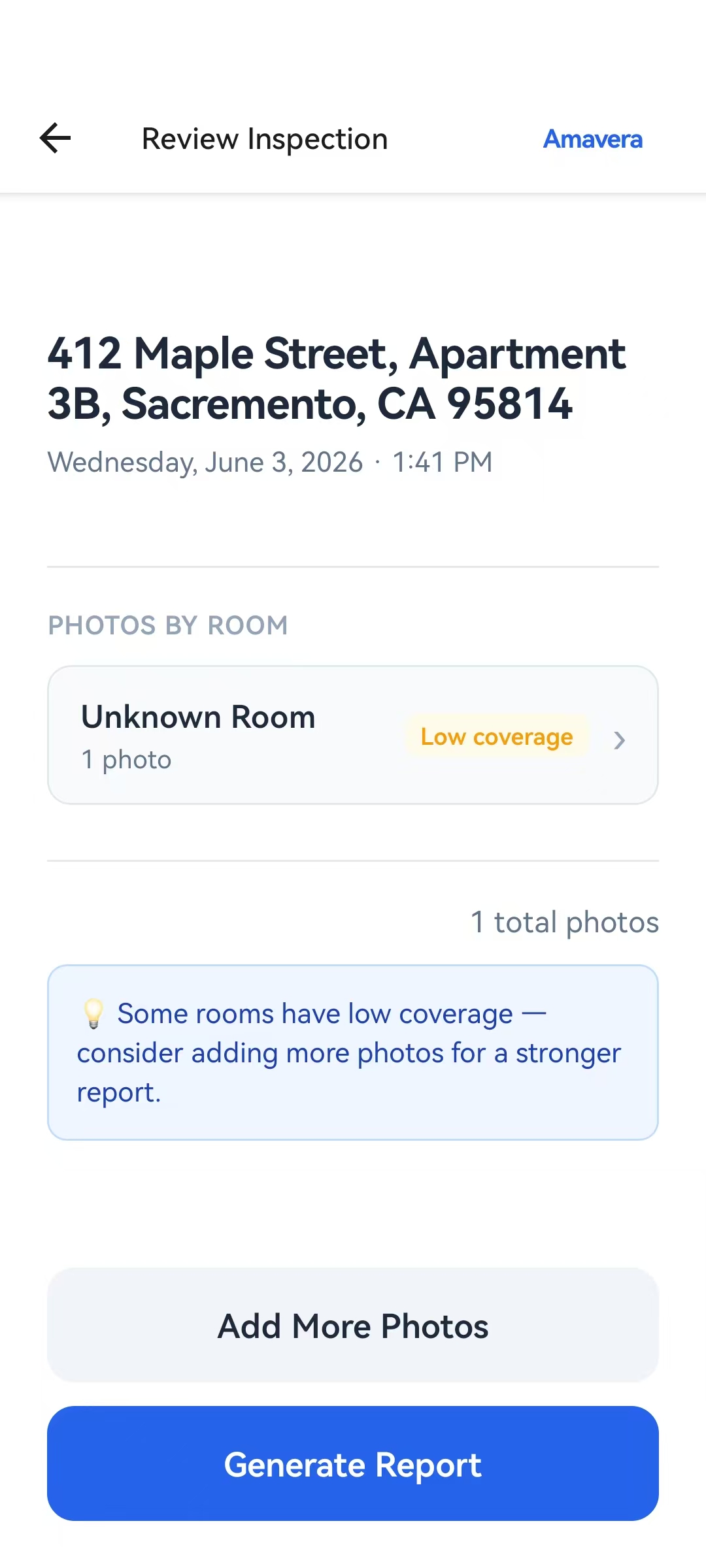
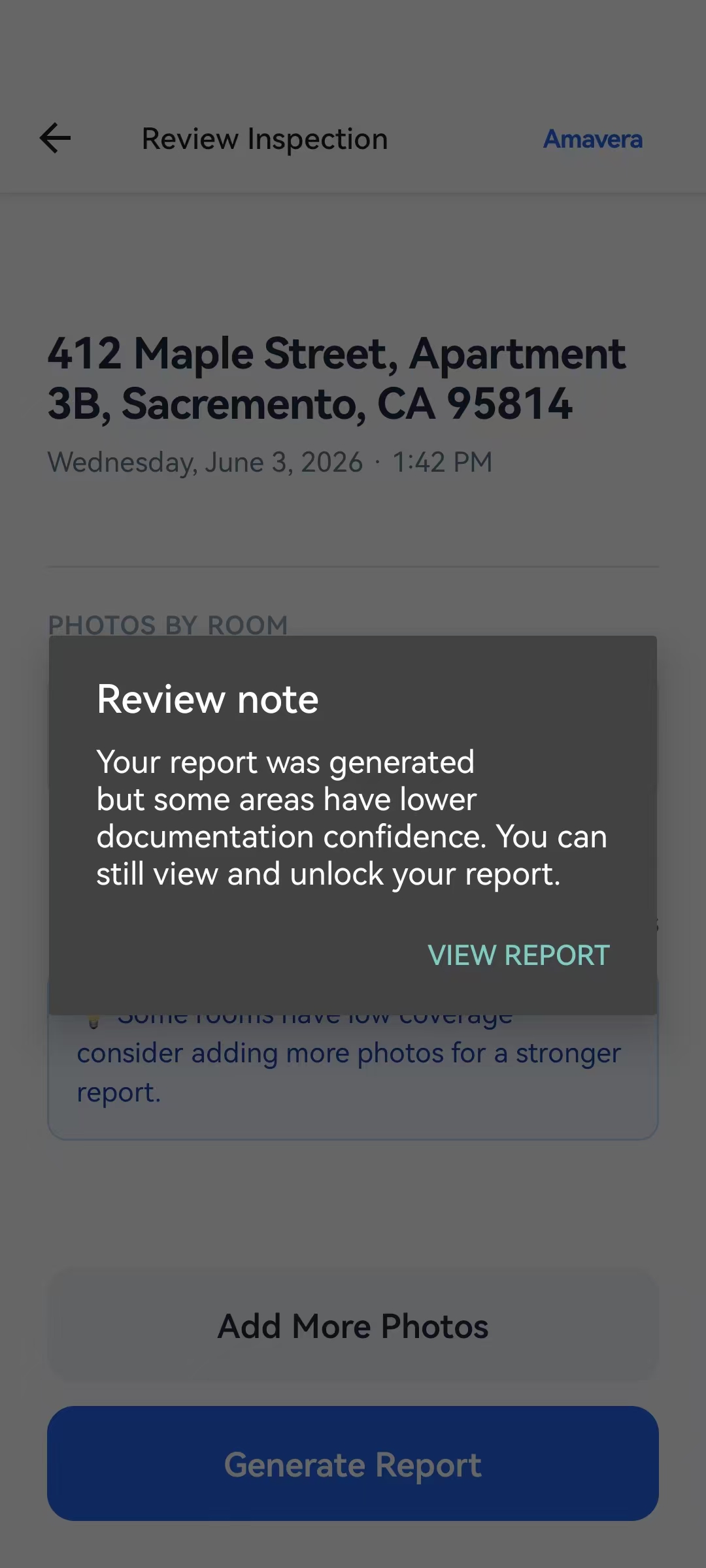
After the walkthrough, the review screen shows photos organized by room, with a coverage pill indicating how well each space was documented. The tenant can add more photos before generating the report.
5 of 11
If photo coverage is limited, the app flags it transparently — the report is still generated, but the tenant is informed of any documentation gaps. Full coverage produces a stronger report.
6 of 11
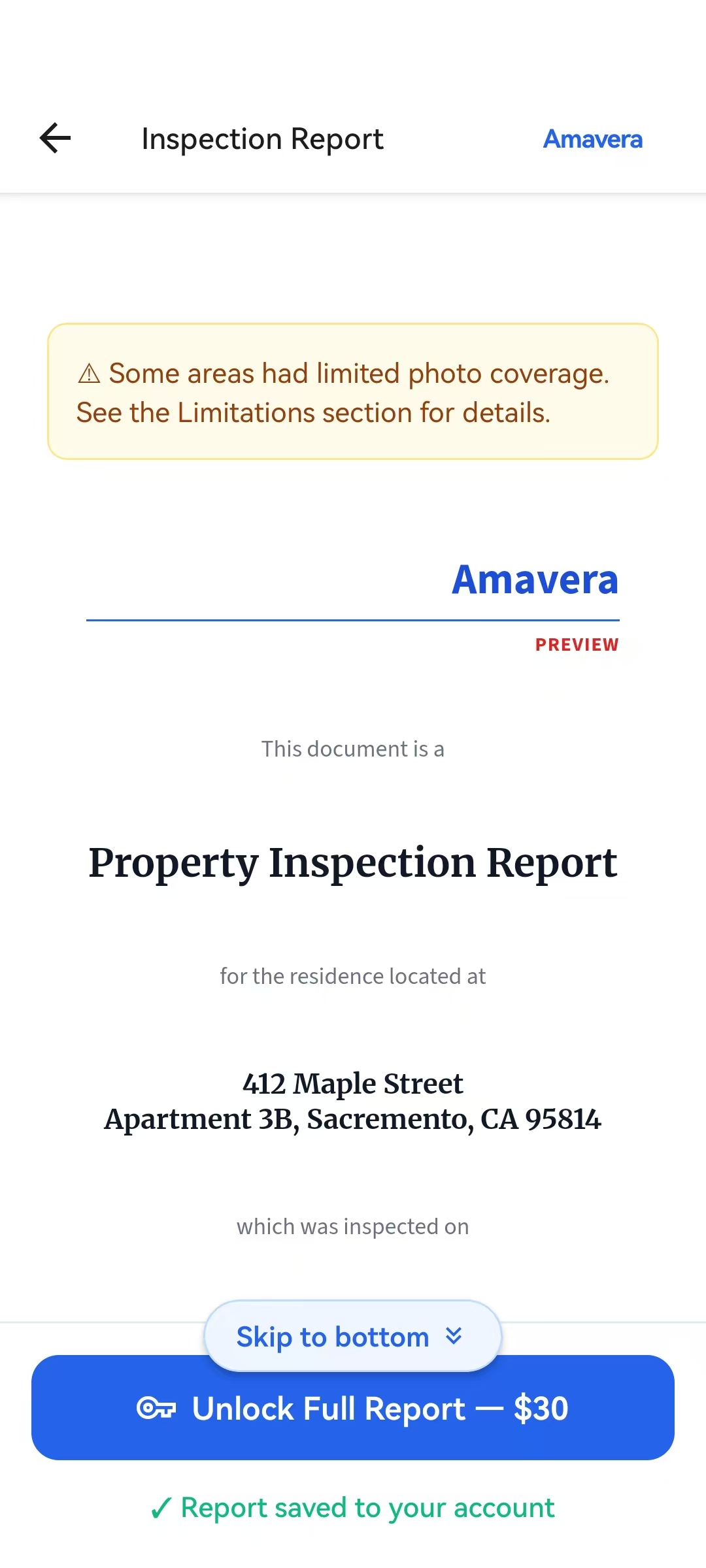
The preview shows the report cover page with the property address formatted clearly — street and unit on the first line, city, state and ZIP on the second. The full report is locked behind the credit unlock.
7 of 11
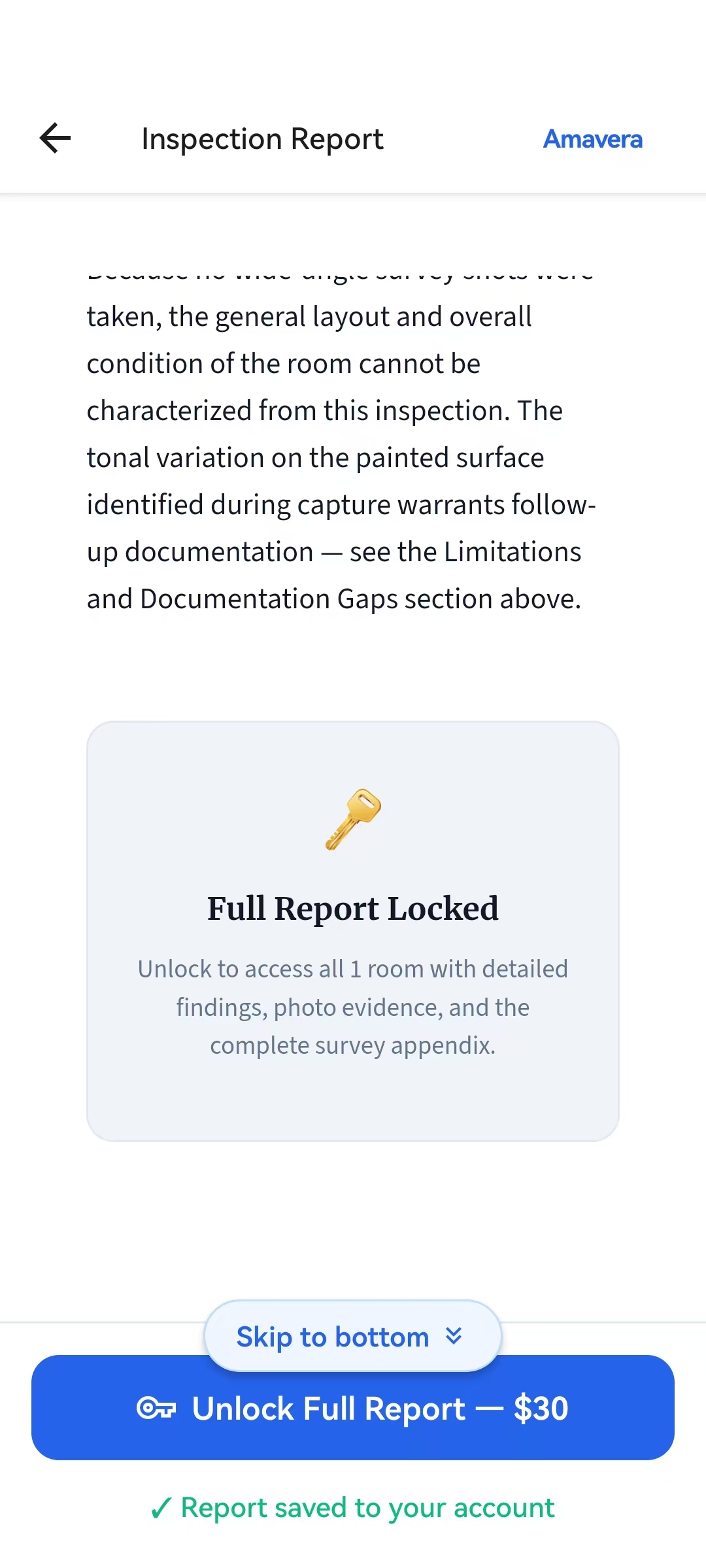
The preview gives a clear sense of what the full report contains — detailed room findings, photo evidence, and a complete survey appendix. Unlocking reveals everything.
8 of 11
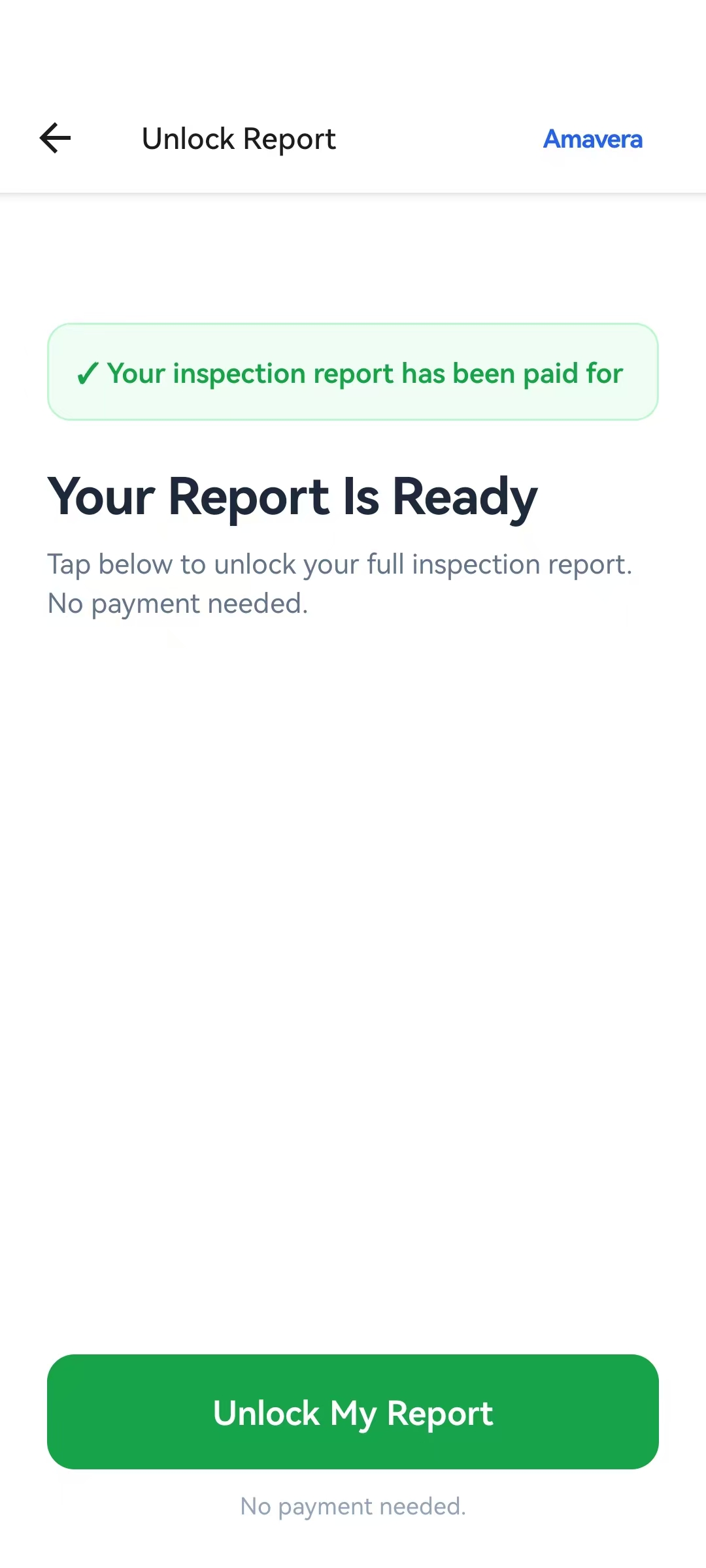
Because the landlord pre-paid with a report credit, the payment screen shows "Your inspection report has been paid for" in green. The tenant taps one button to unlock — no payment needed.
9 of 11
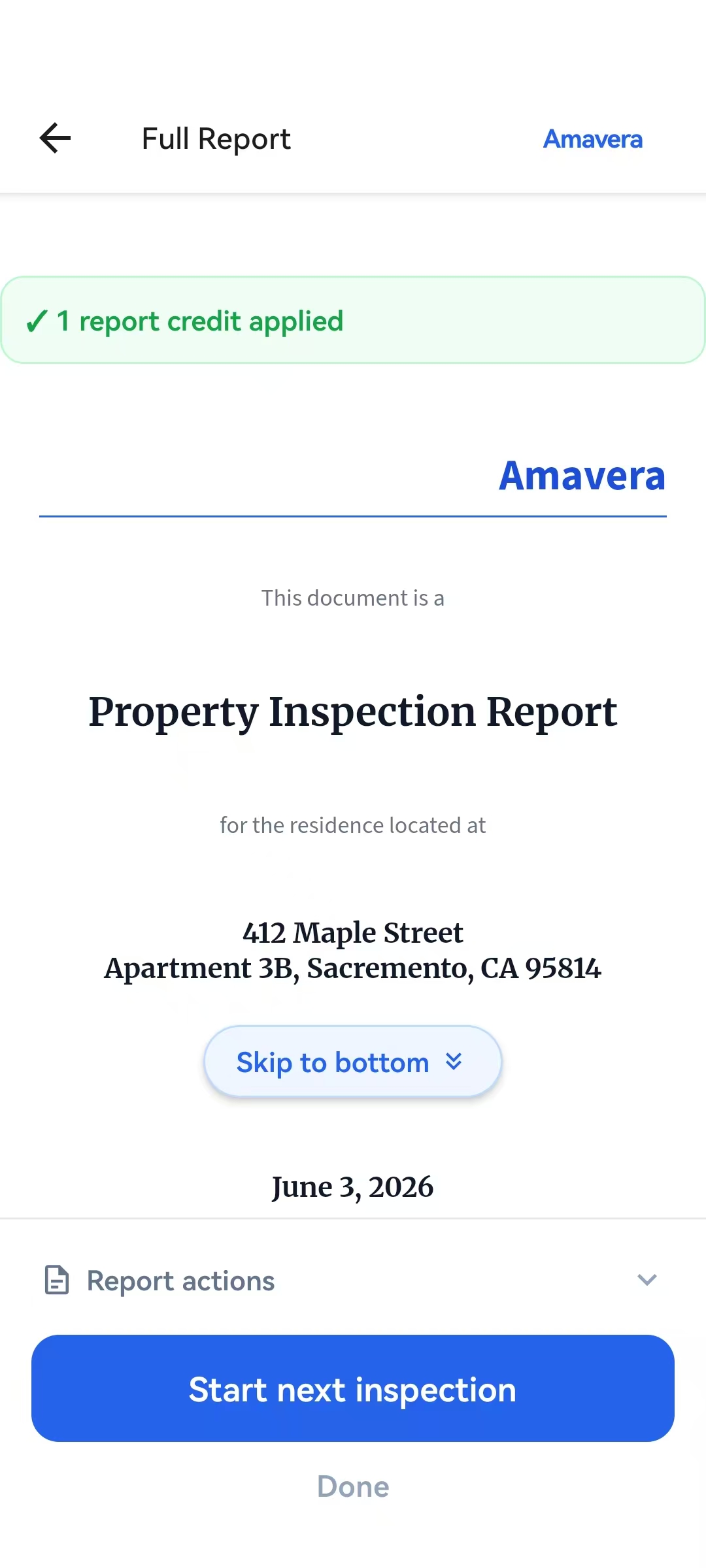
The full report is unlocked instantly. A confirmation banner shows "1 report credit applied." The complete inspection — all rooms, all photos, all findings — is now accessible to the tenant.
10 of 11
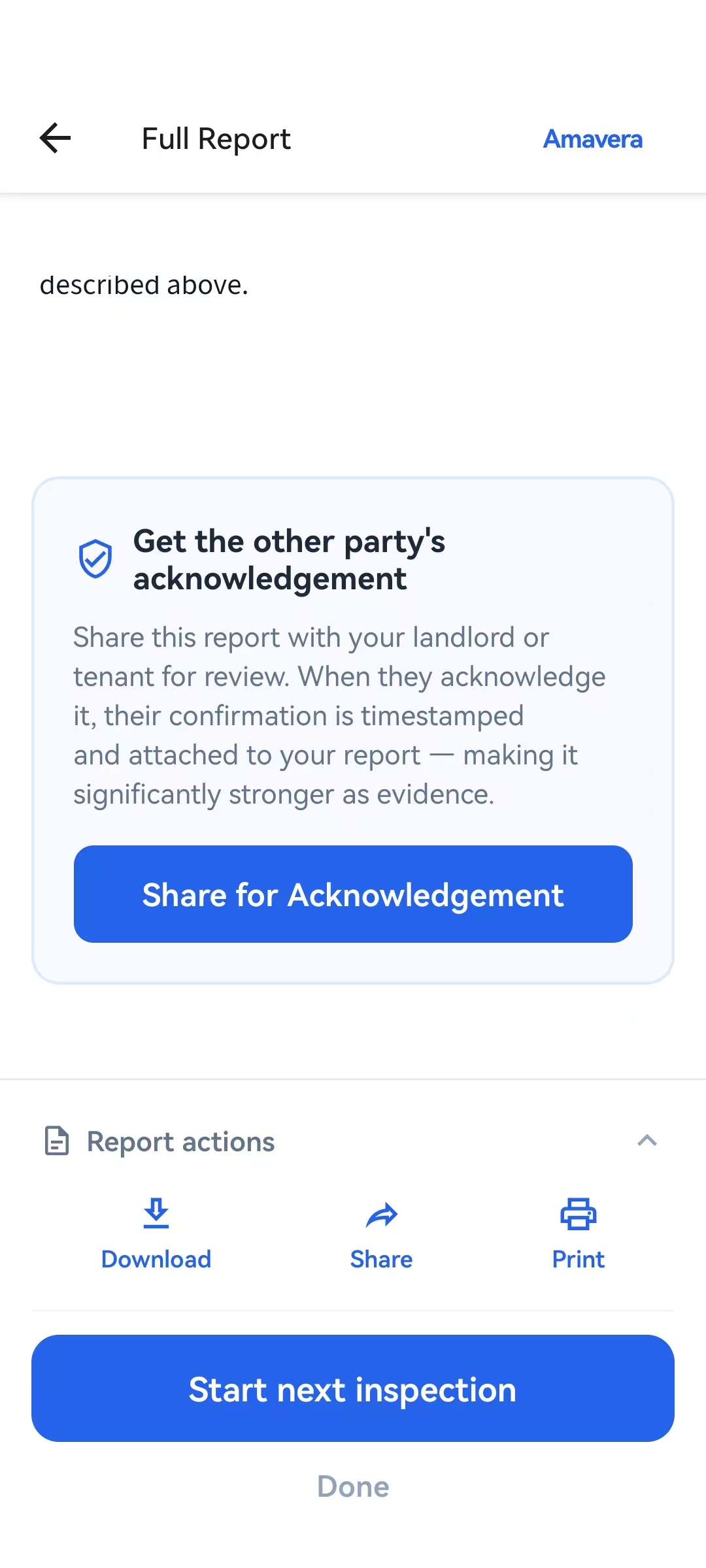
At the bottom of the report, the tenant can download the PDF, share it, or print it directly from the app. A "Share for Acknowledgement" card lets them send the report to their landlord for a timestamped confirmation.
11 of 11
Tapping "Share for Acknowledgement" opens a modal to enter the landlord's email. They receive a link to review the report and confirm it — their acknowledgement is timestamped and permanently attached to the inspection record.
1 / 11
Landlord — Report & Acknowledgement
The report arrives automatically. The landlord reviews and acknowledges.
Once the tenant unlocks the report, the landlord receives it automatically — no follow-up needed. They can download, print, share, and acknowledge directly from the web.
1 of 4
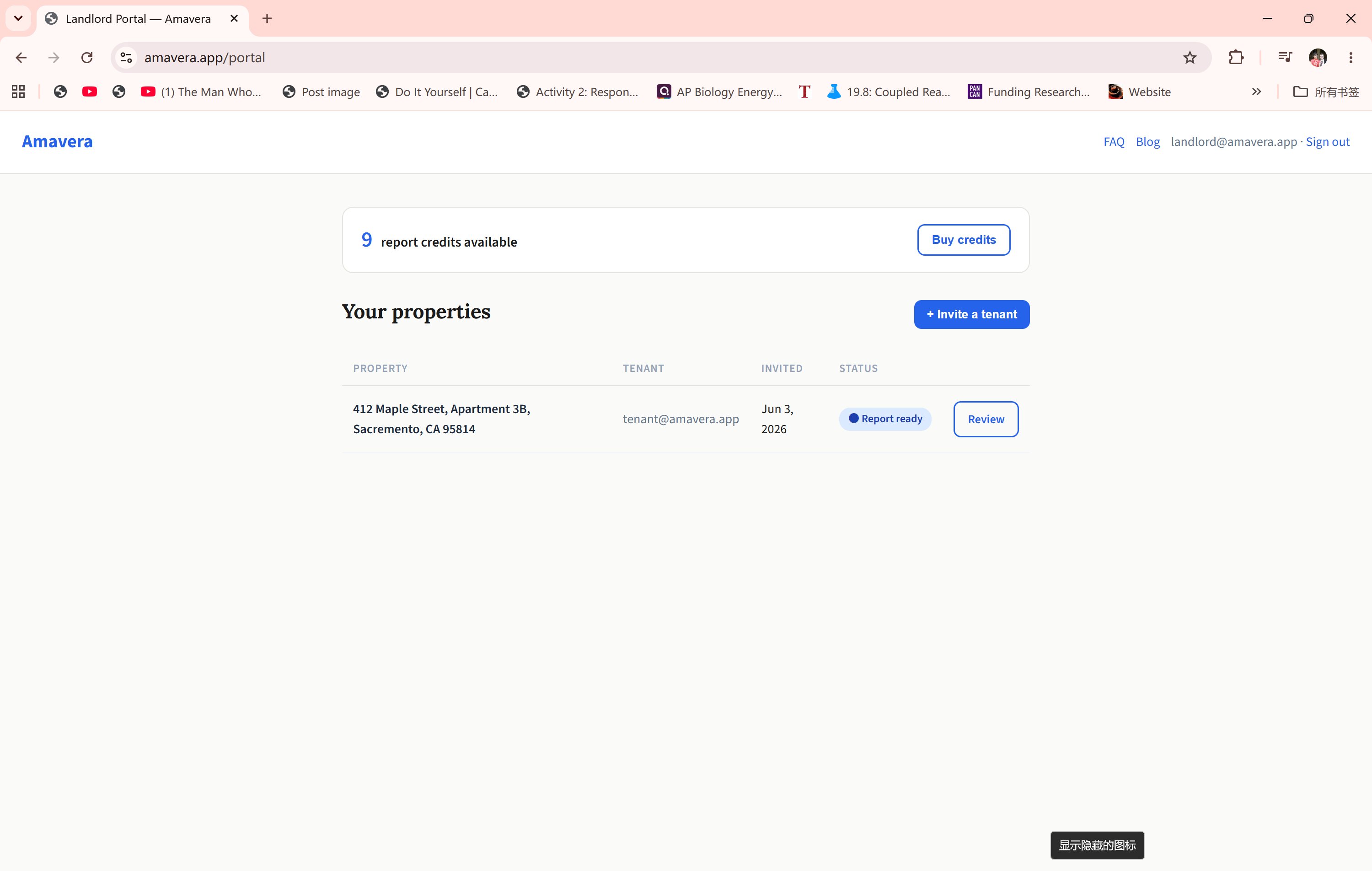
The landlord dashboard updates to "Report ready" with a blue status pill and a "Review" button. The inspection is complete — the landlord can access the full report directly from the portal.
2 of 4
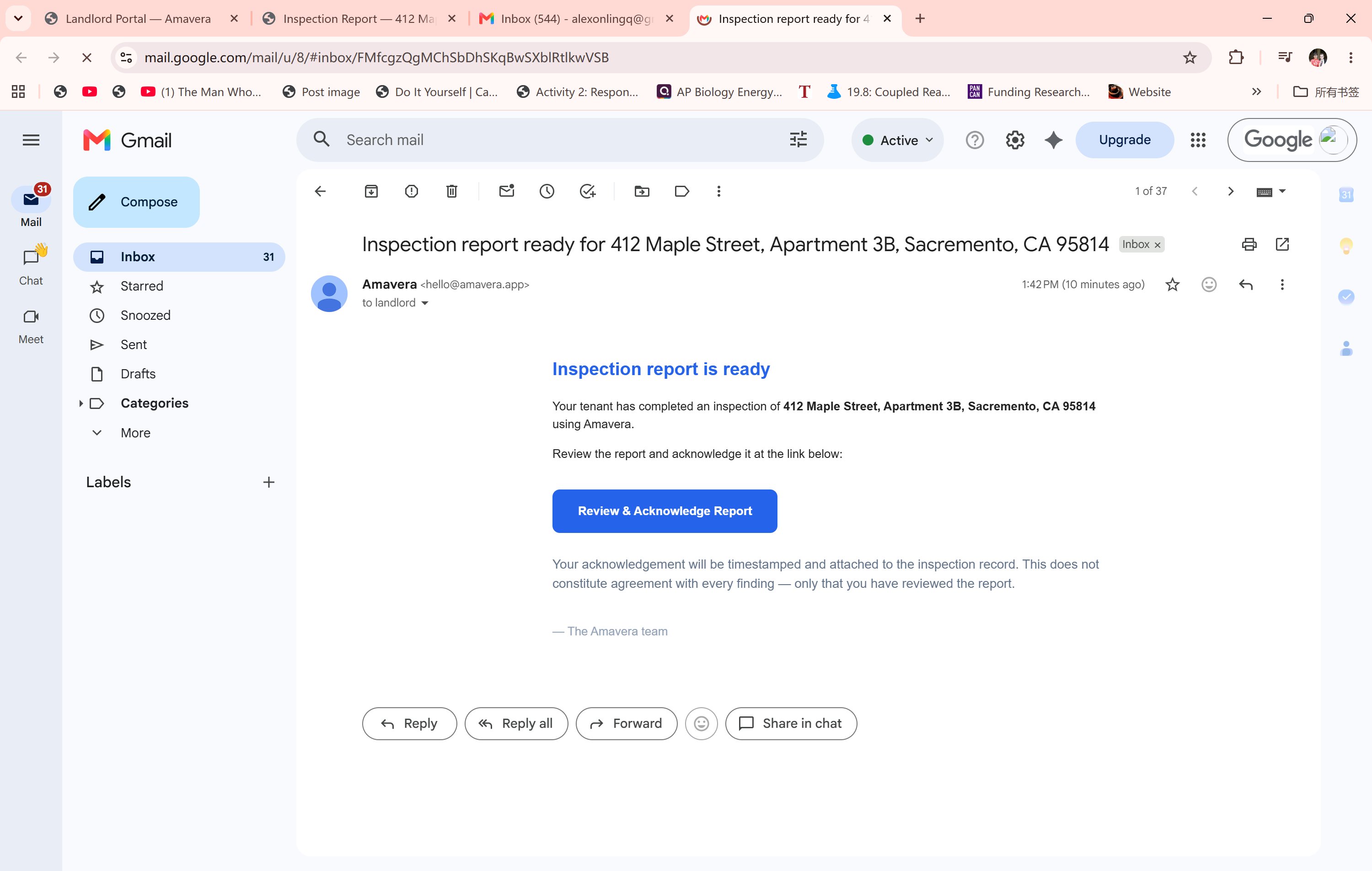
The landlord receives an email notifying them the inspection is complete. A single button — "Review & Acknowledge Report" — links directly to the shared report page.
3 of 4
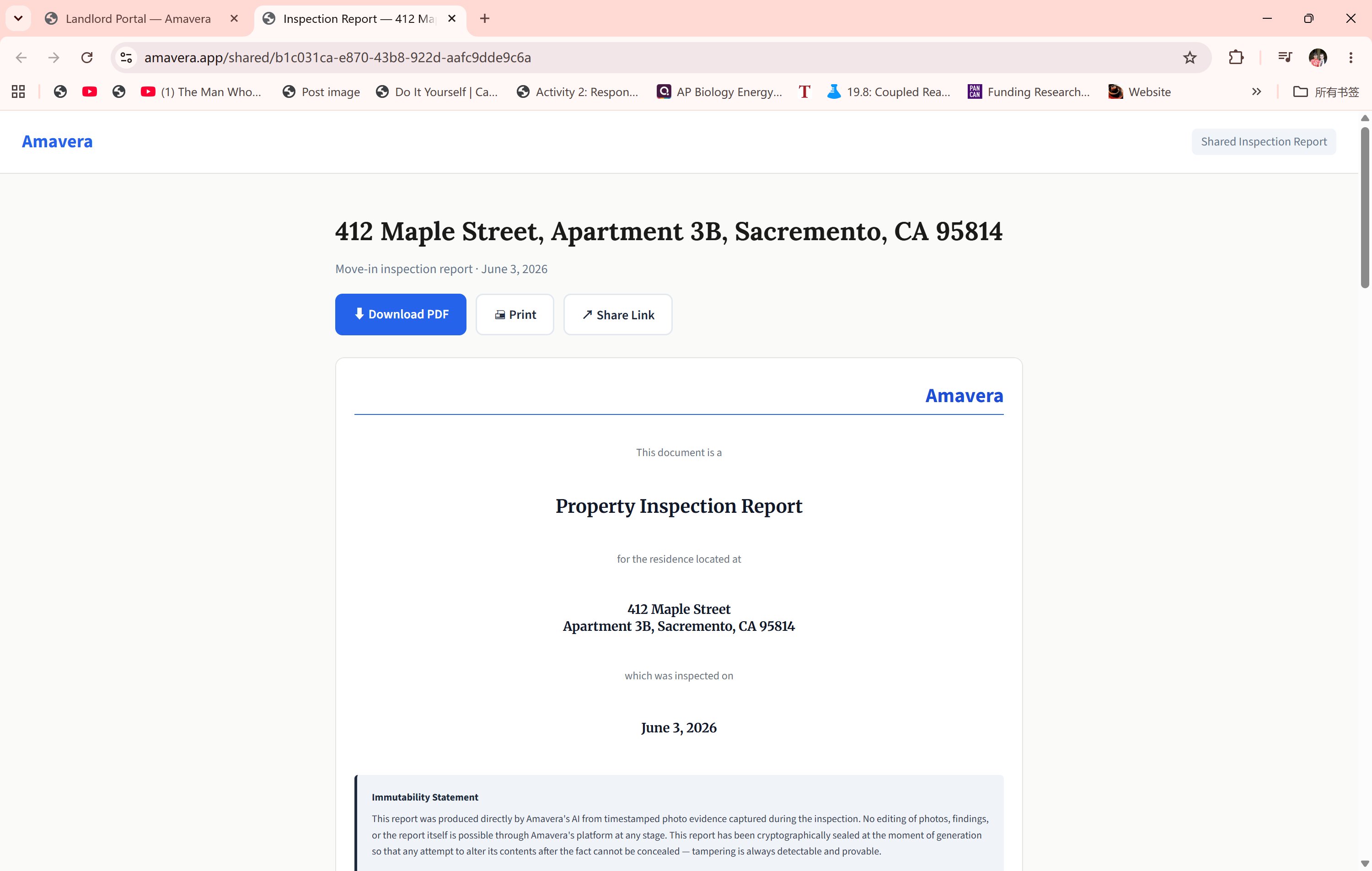
The shared report page shows the property address, inspection date, and the full report inline. Three action buttons sit prominently at the top: Download PDF, Print, and Share Link. No login required to view or acknowledge.
4 of 4
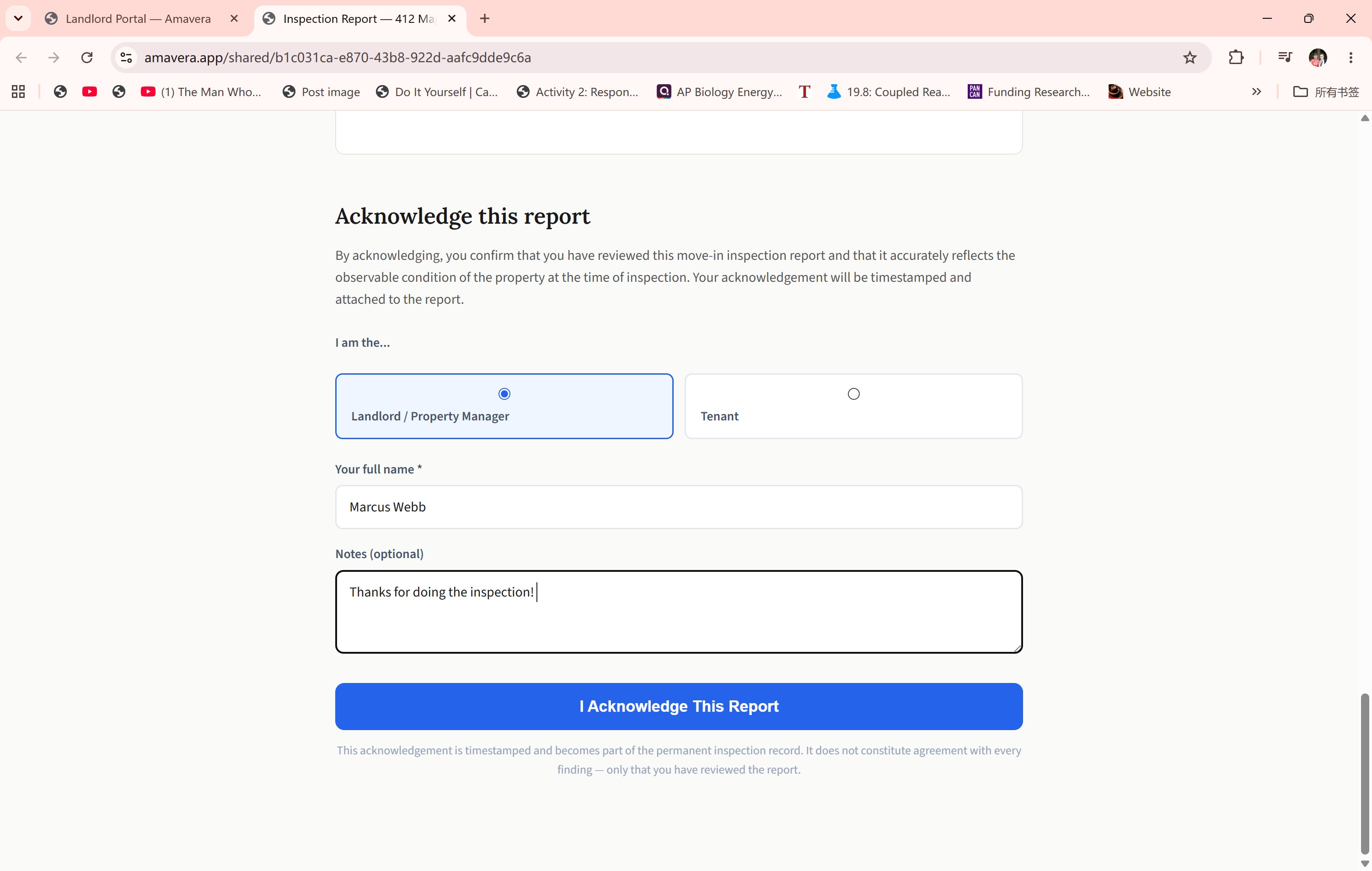
Scrolling down reveals the acknowledgement form. The landlord selects their role, enters their name, and optionally adds a note. Their acknowledgement is timestamped and permanently attached to the inspection record — creating a mutual, verifiable record of the unit's condition at move-in.
1 / 4
For Landlords
Documents, analysis, and deposit tools — built in.
Once a property is documented, the portal gives landlords access to legally relevant documents and AI-powered analysis tools — all tied to the inspection record.
1 of 3
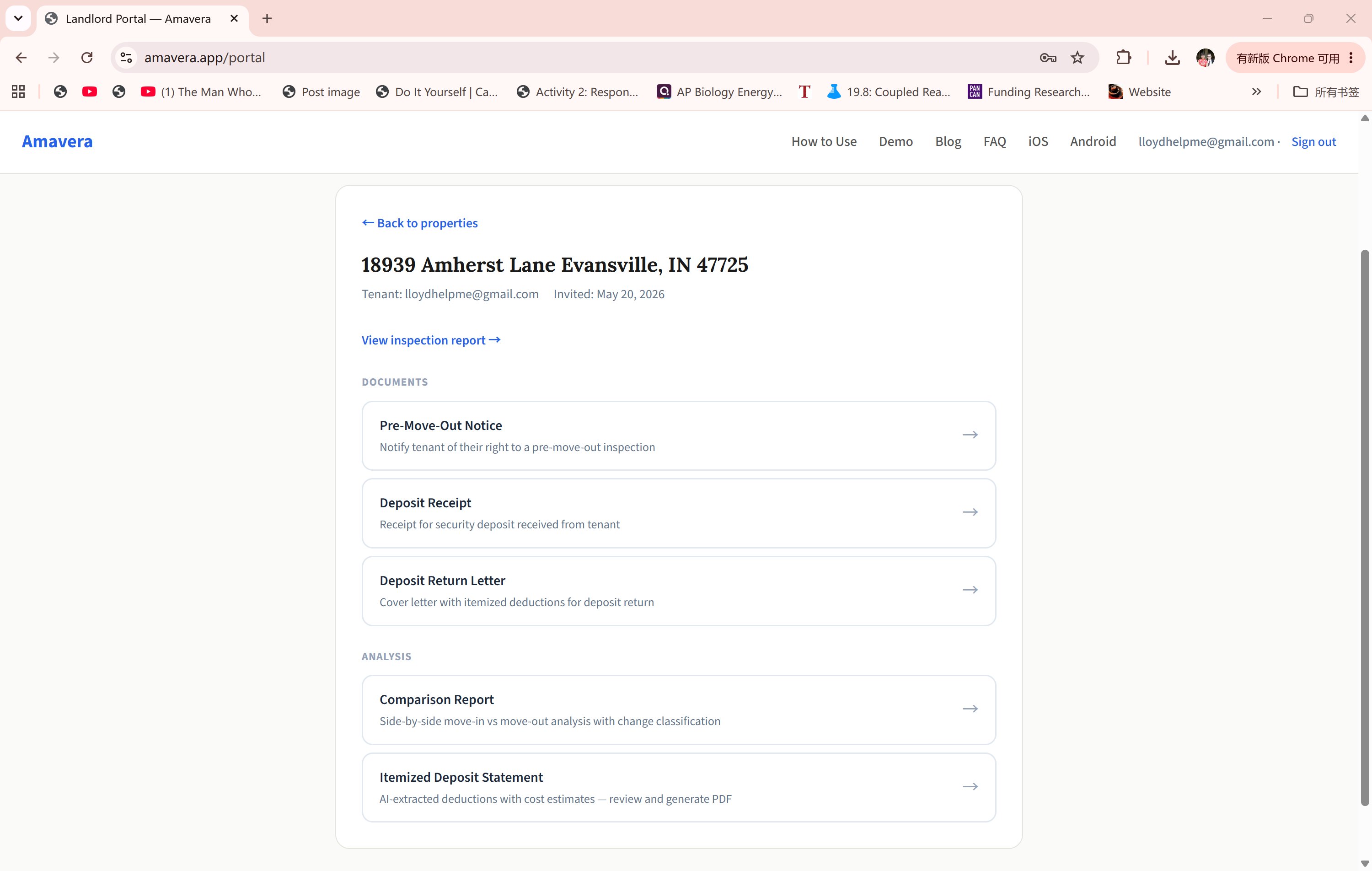
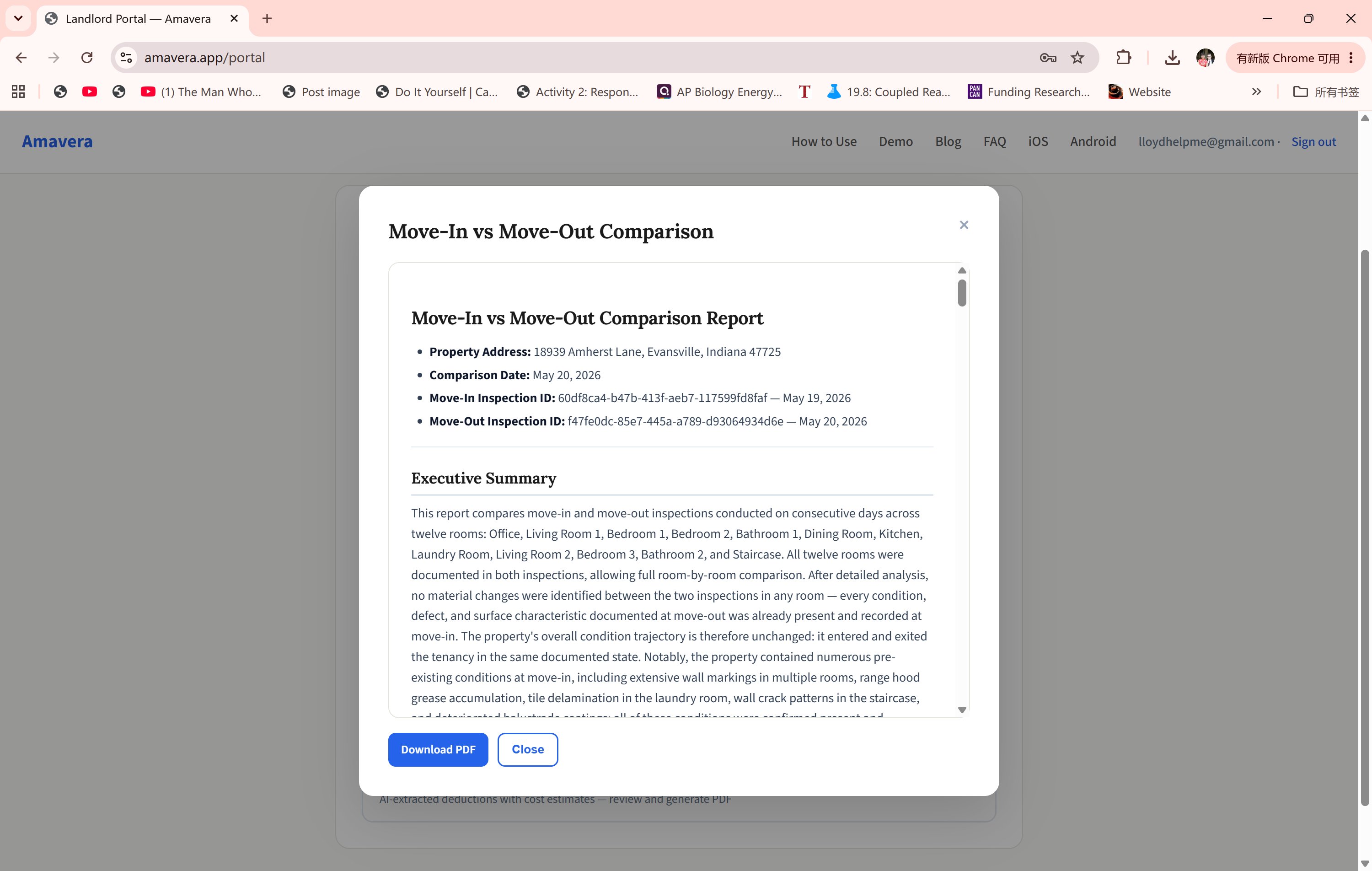
Once a property has an inspection on file, the portal unlocks a full document suite: Pre-Move-Out Notice, Deposit Receipt, Deposit Return Letter, Comparison Report, and Itemized Deposit Statement. Everything a landlord needs to handle move-out correctly and legally.
2 of 3
The Comparison Report puts move-in and move-out inspections side by side, room by room. The AI classifies every change — distinguishing normal wear from damage beyond ordinary use. If there's nothing to deduct, the report says so clearly. If there is, you have the documentation to back it up.
3 of 3
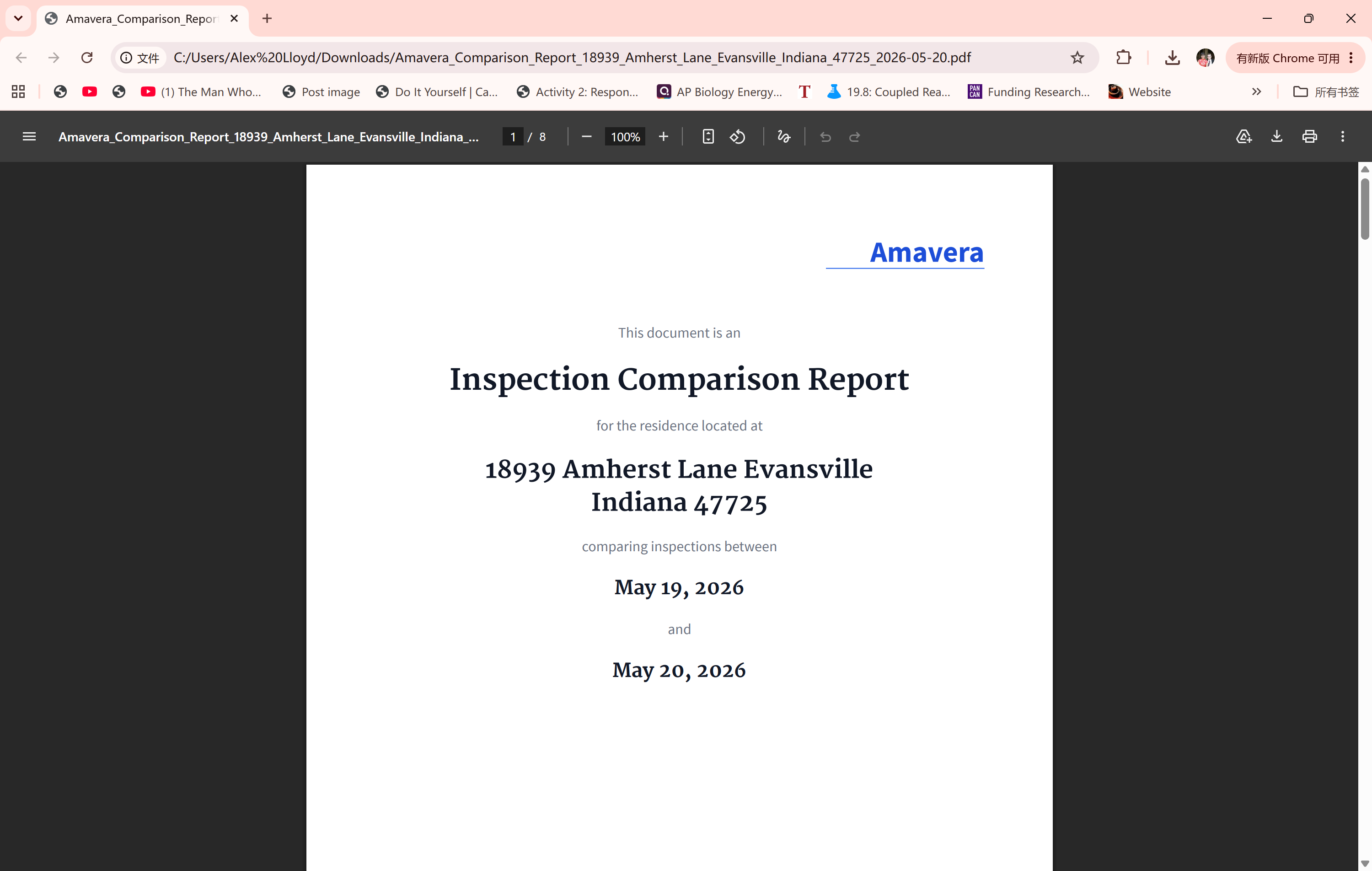
The Comparison Report is delivered as a professional PDF — cover page, property details, move-in and move-out dates. Inside, the AI classifies every change room by room, distinguishing normal wear from damage beyond ordinary use. Sample shown from a test inspection.
1 / 3
Ready to try it?
Landlords start on the portal. Tenants download the app.